Your school's website and family portal live at the same address: your school subdomain (for example, https://yourschool.teachhero.com). Visitors see your public pages; parents and students sign in on the same site to reach their portal. This article explains the family experience so you can walk parents through it.
How families get to the portal
Every page of your school website has a Sign in menu in the top navigation with three options:
- Parent portal — for parents and guardians.
- Student portal — for students.
- Teacher LMS — for your staff.
You can also send families the direct link: https://yourschool.teachhero.com/portal/parent/login.
How parents sign in — no password
Parent login is passwordless. There is no password to create, remember, or reset:
- The parent enters their Email address — the one on file with your school.
- TeachHero emails them a one-time 6-digit login code (it expires after 30 minutes).
- They type it under Enter your login code and they're in.
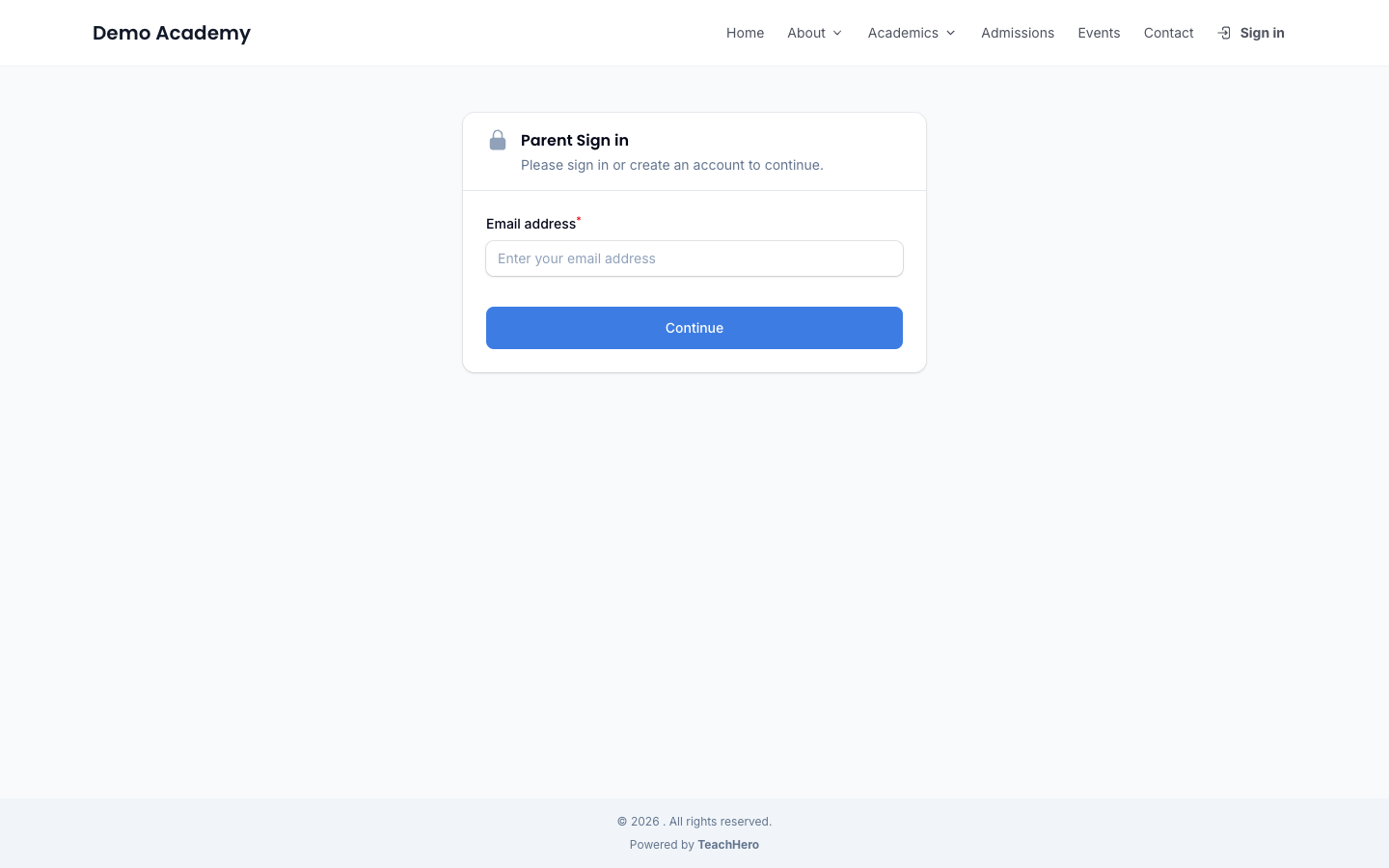
If the email matches more than one person at your school, the parent picks which profile is theirs before the code is sent. If the email isn't on file yet, they can enter their name and email to create an account.
Note: If a parent says they can't sign in, first check that the email they're using matches the primary email on their contact record in Enrollment → Families.
What parents see
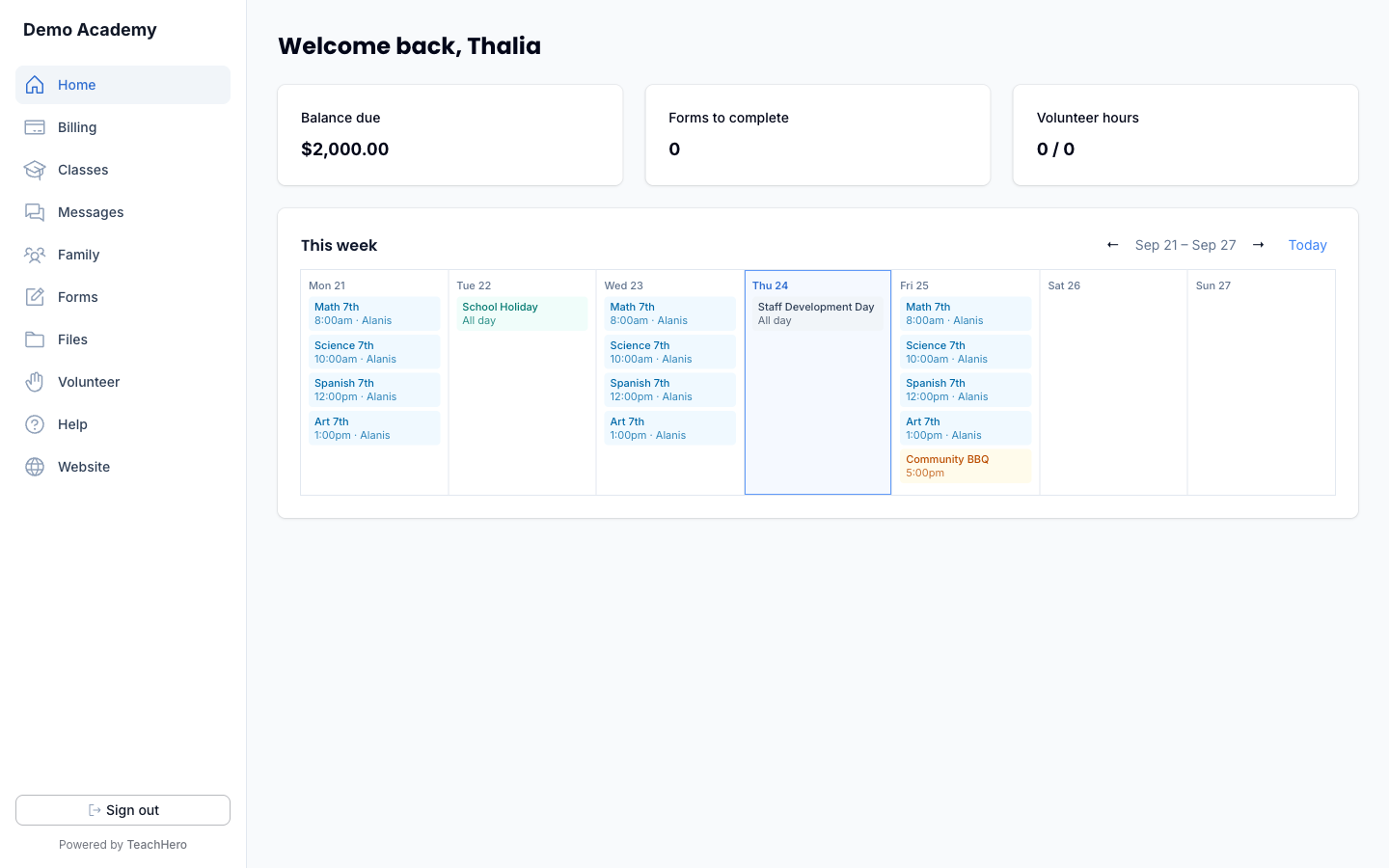
The parent portal sidebar has these sections:
- Home — a dashboard with cards for Balance due, Forms to complete and Volunteer hours, plus a This week schedule.
- Billing — their Open bills (with Pay all due now to pay everything that's due in one step), saved Payment methods (card or bank account), Billing history of bills paid in full, and Payment history. Shown when your plan includes online payments.
- Classes — their students' classes and schedules. Each class has an Announcements tab with the posts the teacher has published.
- Messages — secure conversations with your school. Parents can read and reply to conversations your staff starts, but can't start new ones.
- Family — the members of their family and their details.
- Forms — forms your school has sent them to fill out, with a badge counting any that are still open.
- Files — files your school has shared with them.
- Volunteer — a Timesheets tab for the hours they've logged and a Sign up tab for open volunteer shifts.- Help — a guide to using the portal, opened in a new tab.
- Website — a link back to your public school website.
You choose which of these links appear: turn any of them off — along with the pages they open — under Website & Portal → Design. See Portal Navigation. You can also close the whole portal while keeping your public website online — see Turn the Parent Portal On or Off.
Parents also use the portal (and your public site) to apply, enroll in classes and programs, register for events, and pay — see Enrollment Process.
What students see
Students have their own separate portal with a simpler menu:
- Home — their dashboard.
- Classes — their classes and lessons.
- Homework — assignments to complete and submit.
- Grades — their grades.
Give a student a login
Students sign in with a Student ID and Access Code instead of an email. To set these up:
- Go to Enrollment → Students and open the student.
- Click Manage access.
- Fill in Student ID and Student portal access code, or click Generate next to each field.
- Click Save, then share the ID and code with the student.
Warning: Saving a new access code invalidates the old one — the student will need the new code to sign in.
Preview the portal yourself
On any page under Website & Portal in your admin panel, click View site in the header. It opens your public website in a new tab (or the parent portal, if you haven't published any public pages yet), so you can see exactly what families see.