TeachHero tracks every online payment automatically and lets you record offline payments (check, cash) yourself. Each payment is applied to one or more invoices — that's how TeachHero knows what a payment was for and keeps what each student owes accurate.
Note: Recording offline payments and charging cards and bank accounts online both work on every plan. Online payments need a connected Stripe account and are charged at Stripe's standard rates plus TeachHero's small platform fee — see Plans & Pricing.
Take a payment on an invoice
This is the usual way: you are already on the invoice the money is for, so there is nothing to match up afterwards.
- Open the invoice from Billing → Invoices, or from the Invoices panel on the Billing tab of the student's page (Enrollment → Students).
- Click Record payment.
- Choose Pay what's due now (shown when the invoice has payment dates), Pay the full balance, or Enter a different amount, and check the Amount. Each option shows what it comes to.
- Confirm Paid by — it starts as the invoice's payer, and a payment often arrives from the other parent.
- Choose the Payment Method: Credit/Debit card, ACH Debit, Check, Cash, or Other.
- For card or ACH, pick one of the payer's saved payment methods and tick the confirmation line. For check, cash, or other, there is nothing to charge — you're recording what you received. Set Date received to the day it reached you; it starts as today.
- Click the submit button, which reads Process payment for an online charge and Record payment otherwise.
The payment is spread across the invoice's charges in proportion to what each one still owes, and appears on the invoice's Applied payments tab. TeachHero emails the payer a receipt.
You can also start from Billing → Payments → Received: click Record payment, choose the invoice, and click Continue. The list starts with the most recent open invoices; to reach an older one, search by family name or invoice number. The same form opens.
Apply to specific items
Sometimes money is earmarked — a charter or sponsor pays for one class, or a family wants a check to go toward materials before tuition. Instead of the proportional spread, set the amount per charge yourself:
- Tick Apply to specific items.
- A field appears for each charge that can still take money from this payment. Each one says how much it can take.
- Enter the amounts you want — they must add up to the payment — then submit.
What you set carries through to what the student owes, the family's receipt, the Revenue report grouped by class, and the QuickBooks sync.
View payments
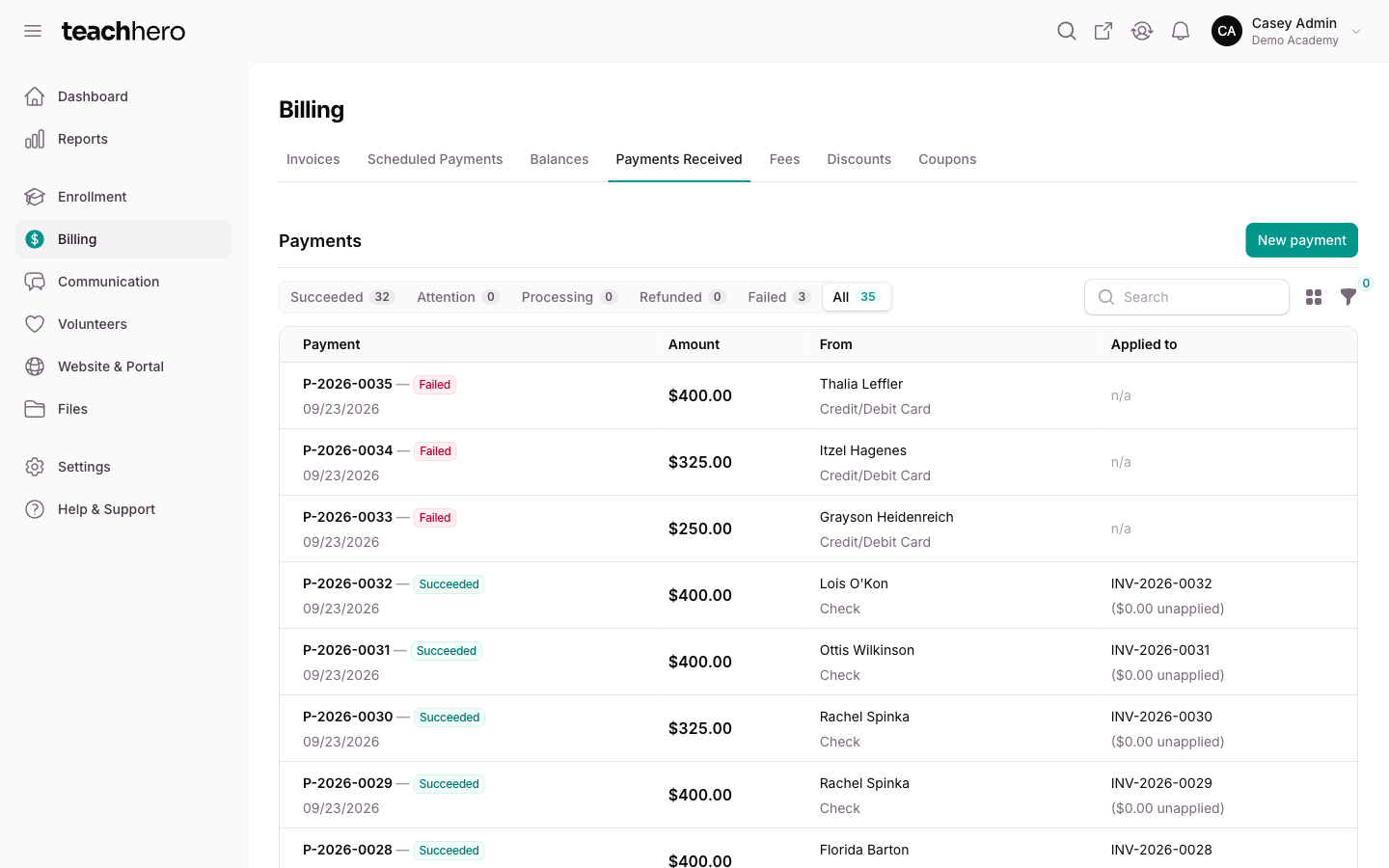
Go to Billing → Payments → Received. The page has filter pills:
- Succeeded — payments that processed successfully.
- Unapplied — payments that haven't been applied to anything yet. TeachHero doesn't know what these payments are for, so review them and apply them.
- Processing — payments still settling. This mostly happens with ACH, which can take several business days. A processing payment counts as successful, but it can still fail — if it does, TeachHero marks it Failed and rolls the amount back off the invoices it landed on.
- Refunded — partially or fully refunded payments.
- Failed — payments that didn't go through (insufficient funds, declined by the issuer, and so on). Failed payments are kept for 7 days and then deleted, so check this list regularly and follow up with the payer.
- All — everything.
Each row shows the payer, the payment method, and the invoice numbers the payment has been applied to, with any unapplied amount flagged in red. Click a row to open the payment.
Apply a payment to an invoice
Money that arrived without an invoice attached — a check for two children, an overpayment, a payment recorded before the charges existed — is matched on the payment itself. Open the payment and find the Applied to table under Items.
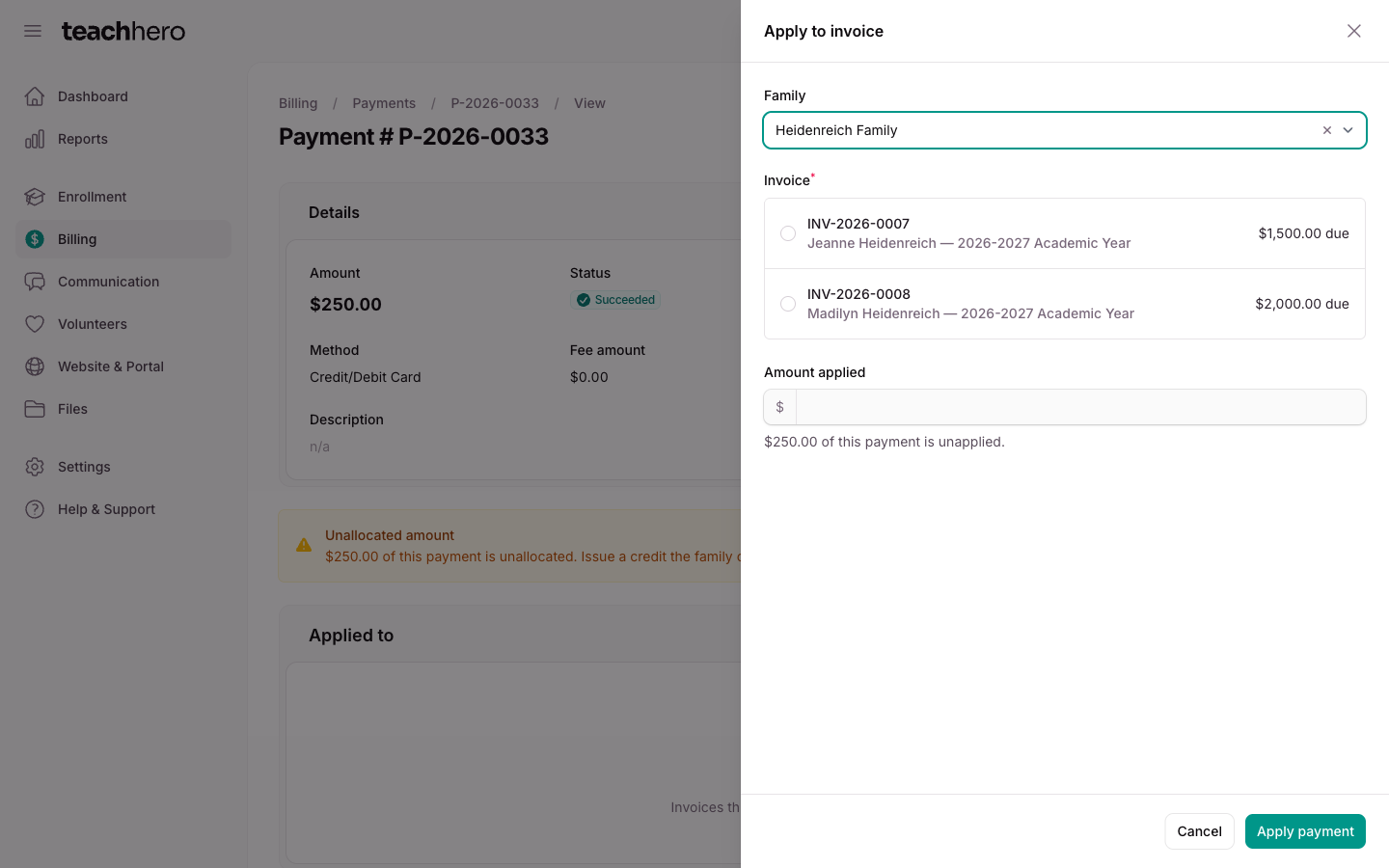
- Click Add. The Apply to invoice panel opens.
- Confirm the Family — search by family, parent, or student.
- Choose an Invoice. Each option lists its number, the student and term it is billed against, and what it still owes, so a parent paying for more than one child can tell their invoices apart. An invoice this payment already covers in part also says how much came from this payment.
- Enter the Amount applied. It pre-fills with the most this invoice can take from the payment — whichever is smaller, the invoice's remaining balance or the money still unapplied — and the helper text tells you how much of the payment is unapplied.
- Click Apply payment.
You can also do this from the invoice: the Applied payments tab lists the family's Unapplied payments, each with an Apply to invoice button.
TeachHero spreads the amount across the invoice's charges in proportion to what each one still owes, so refunds and credits stay attributable. Apply to specific items works here too. A payment can cover several invoices — add a row for each. Applying to an invoice the payment already covers adds to what's there; it doesn't replace it.
Where the payment went
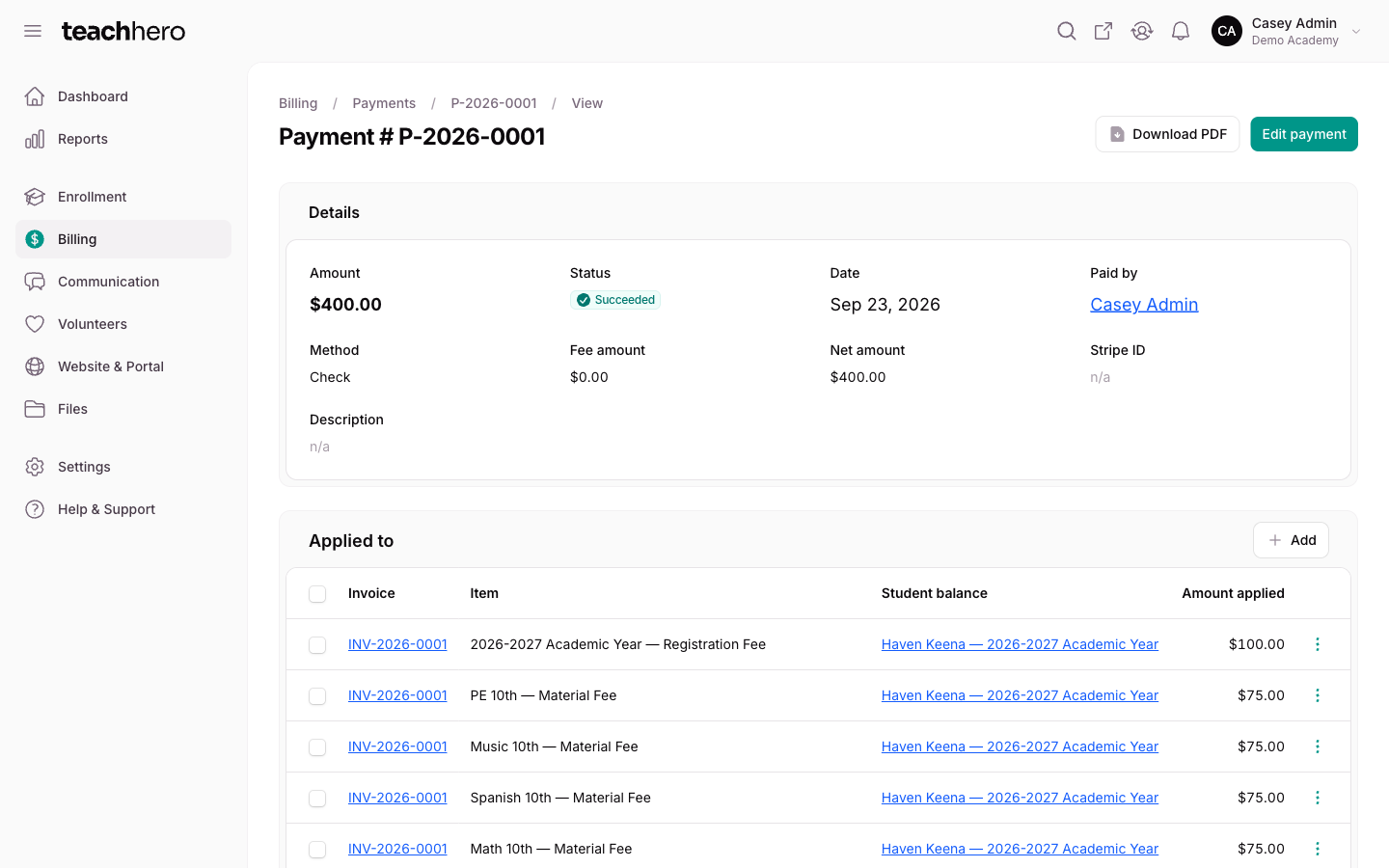
The Applied to table shows one row per charge the payment covers: the Invoice, the Item (the class or fee, such as "PE — Tuition"), the Student and term it belongs to, and the Amount applied. Both the invoice and the student-and-term columns link through to the invoice; rows that belong to no student and term, like account credit, show a dash.
Use Edit on a row to change how much that charge received — the window tells you the most it can take — or Remove to take that row back. The invoice updates either way, and so does what the student is shown as owing. A row that a refund already counts against can't be removed.
If part of the payment can't be matched to a charge, the payment shows an Unallocated amount alert with two options: Issue credit (give the family account credit to use later) or Issue refund (return the money — see Refunds).
Edit a payment
- Open the payment and click Edit payment.
- Change the details and click Save changes.
For payments processed online through Stripe, the amount and payer can't be changed. Failed and cancelled payments can't be edited at all — no money moved — but a failed payment can be deleted with Delete payment.
Payment statuses
- Succeeded — processed successfully.
- Processing — funds still settling (mostly ACH).
- Failed — did not process; the failure reason shows on the payment.
- Refunded / Partial refund — money has been returned.
- Cancelled — the payment was cancelled before completing.