Reports answer the money questions every school asks: who owes us, what have we collected, and what have we given back. Reports are included on every plan.
Go to Reports in the sidebar. You'll see a card for each report — click a card to open it. Every report works the same way: filters at the top, a table of results, and an Export CSV button.
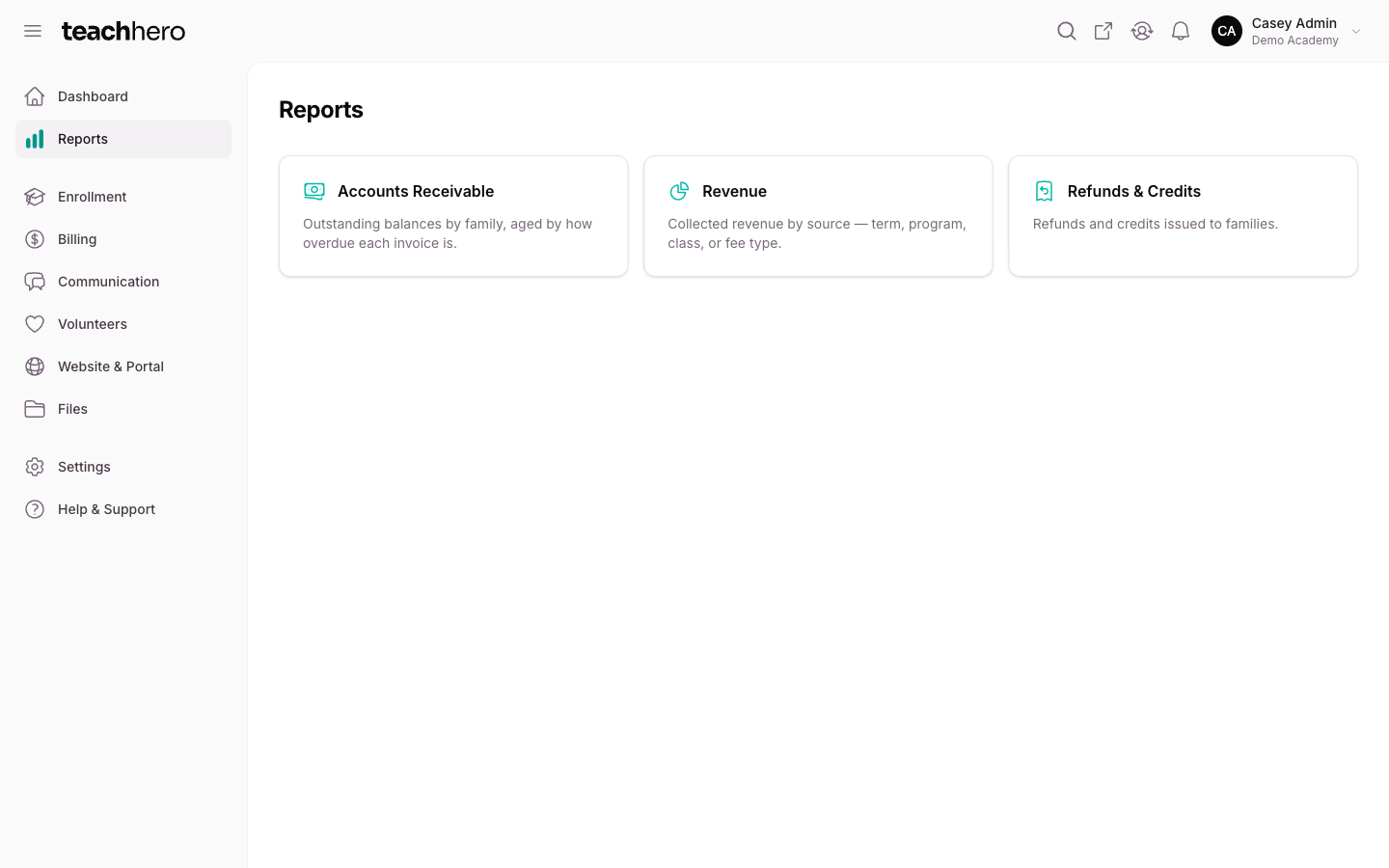
Accounts Receivable — who owes you money
Shows outstanding balances by family, aged by how overdue each invoice is. One row per family that owes money, sorted with the largest balance first.
Each family's balance is split into aging columns:
- Current — billed but not yet due.
- 1–30, 31–60, 61–90, 90+ — how many days past due each amount is.
- Total outstanding — everything the family owes, across all columns.
- Last payment — the date of the family's most recent successful payment.
- Status — Past due if any amount is overdue, otherwise Current.
Note: Families on payment plans are treated fairly: each installment only counts as overdue after its own due date passes. A family is never flagged past due for installments that aren't due yet.
Filters at the top of the report:
- As of date — see balances as they stood on any date, for example the end of last month.
- Minimum balance — hide balances below a dollar amount.
- Term — only show families with an active enrollment in that term.
Note: The Term filter chooses which families appear; each family's totals still include everything they owe, not just charges from the selected term.
Revenue — what you've collected
Shows money you actually collected, grouped by where it came from. It counts successful payments, not amounts you've invoiced — so it reflects cash in, not promises.
Filters:
- Group by — Term, Program, Class, or Fee type. Use Fee type to answer questions like "how much did we collect in tuition versus registration fees?"
- From / To — the date range of payments to include. Defaults to the last 12 months.
Columns:
- Source — the term, program, class, or fee type.
- Collected revenue — the total collected for that source in the date range.
- Share — that source's percentage of everything collected in the range.
- # Payments — how many payments contributed to it.
Note: Refunds are not subtracted from this report. To see money you've given back, use the Refunds & Credits report.
Refunds & Credits — what you've given back
A single ledger of refunds and credits issued to families, newest first. A Refund returns money to the family's payment method; a Credit reduces what they owe on future charges. See Refunds and Credits for how to issue each.
Filters:
- Type — Both, Refunds, or Credits.
- From / To — the date range. Defaults to the last 12 months.
Columns: Date, Family, Type, Amount, and Reason (the note entered when the refund or credit was issued).
Export a report to CSV
Every report can be downloaded as a CSV file you can open in Excel or Google Sheets.
- Open the report and set your filters — the export uses exactly what's on screen.
- Click Export CSV.
The file downloads with the report name and today's date, for example accounts-receivable-2026-07-04.csv.