What a student owes is the sum of their invoices. Every fee, discount, payment, refund, and credit sits on an invoice, so the invoices themselves are the record — there is no separate figure kept alongside them.
There are three places to read it: the Invoices list for the whole school, a student's page for one student across every term, and the family panel for a whole family. None of them moves money. Charges, payments, credits, refunds, the payment plan and its dates, splitting, holding and publishing all live on the invoice they act on — see Invoices.
The whole school
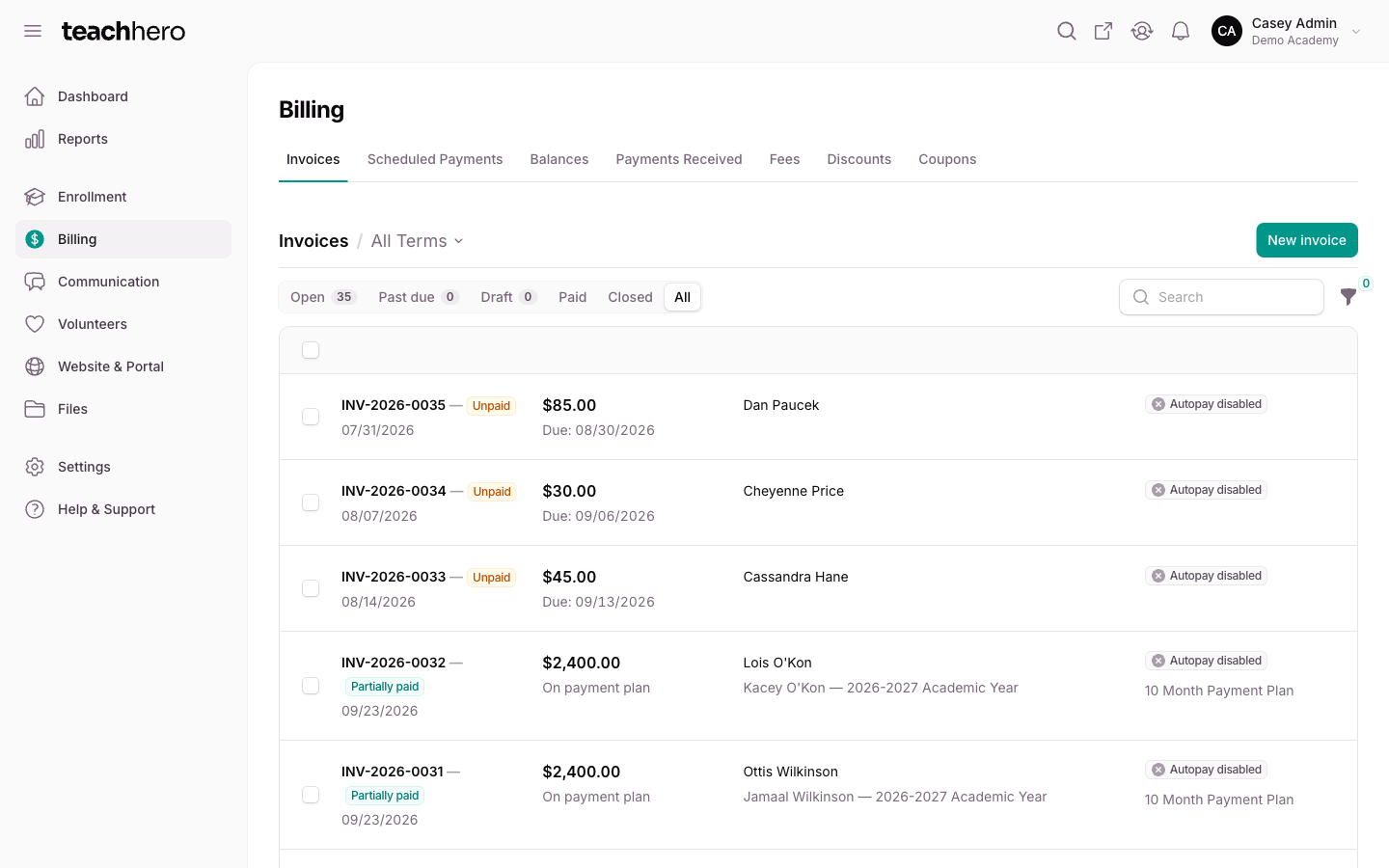
Go to Billing → Invoices. Each row is one invoice, named for the student and term it was raised for, with its number underneath. Filter pills across the top narrow the list:
- All — every invoice.
- Open — anything still being collected.
- Past due — invoices past their due date.
- Draft — held invoices, which no family has seen yet.
- Paid — invoices that are settled.
- Closed — closed and uncollectable invoices.
Open, Past due, and Draft carry a count, so what is waiting on you is visible without clicking. Use the term selector to focus on one term, and the search box to find a student by name or an invoice by number.
Each row shows who it is Billed to — with the saved card or bank account autopay would charge underneath, or No method on file — its Status, and its Total, Paid, and Remaining. Click a row to open the invoice.
Filter results above the table opens a panel with a Published filter for splitting held invoices from published ones, alongside filters for due and issued dates, autopay, reminders, payment plan, and archived invoices.
One student
Open a student from Enrollment → Students and choose their Billing tab. The Invoices panel there lists every invoice ever raised for that student, grouped by term: terms that have not ended come first, newest first, then past terms, then anything tied to no term at all.
Above the table is the figure worth watching — what the student still owes across their published invoices. A held invoice the family has never seen and an invoice the school has written off both stay in the table, because they belong in the history, but neither is money you are owed, so neither is in that figure.
Each row shows:
- Invoice — the invoice number. Click the row to open it.
- Billed to — the payer the invoice is addressed to.
- Status — the invoice's status, or Held while it is held back from the family.
- Total, Paid, Remaining — that invoice's own figures.
- Next payment — the first payment date still owing, or the invoice's due date when it has no schedule.
Within a term the default invoice comes first, then the published ones, then the held.
Where new charges land
In a term with more than one invoice, one of them carries a New charges land here badge. That is where enrollment and checkout put the student's next charges. (Add charge on an invoice always charges that invoice.)
To move the marker, open the student's Billing tab, click Manage on the invoice that should take them, and choose Make default. It is offered on any of that student's other invoices for the same term that is still open or draft, not held, and not archived.
A whole family
On a student's Profile tab, or a parent's Contact tab under Enrollment → Families, the family panel names what the family still owes underneath the family's name.
It covers every invoice the school is still collecting from anyone in that family: published, not archived, not voided, and not yet settled. Held drafts, invoices written off as uncollectable, and a checkout still in progress are all out of it. See Families.
Keep an eye on held charges
Charges only count — and only get collected — once they are on a published invoice. A held invoice is invisible to the family, is never charged by autopay, and stays out of every figure above until you publish it. A held invoice you forget about is money you never asked for.
The Draft pill on Billing → Invoices is where those invoices collect. Open one and click Publish at the top of the page to hand it to the family; you can hold it again while it is unpaid. See Invoices.
Two kinds of invoice arrive already published: the checkout invoice from online enrollment, and a dated invoice for any fee set to be due on a specific date, which TeachHero creates and publishes when the enrollment completes.
Give a family a copy
Open the invoice and choose Manage → Download PDF. The PDF names the student and term in its header and lists each charge by fee name. A student with invoices on more than one term, or more than one payer, gets one PDF per invoice.