TeachHero partners with Stripe to process online payments — credit and debit cards plus ACH bank transfers. Connect your school to Stripe once, and families can pay invoices directly in their portal.
Note: Online payments are available on every plan. See Plans & Pricing.
Connect your school to Stripe
- In the sidebar, click Settings. It opens on the School account tab.
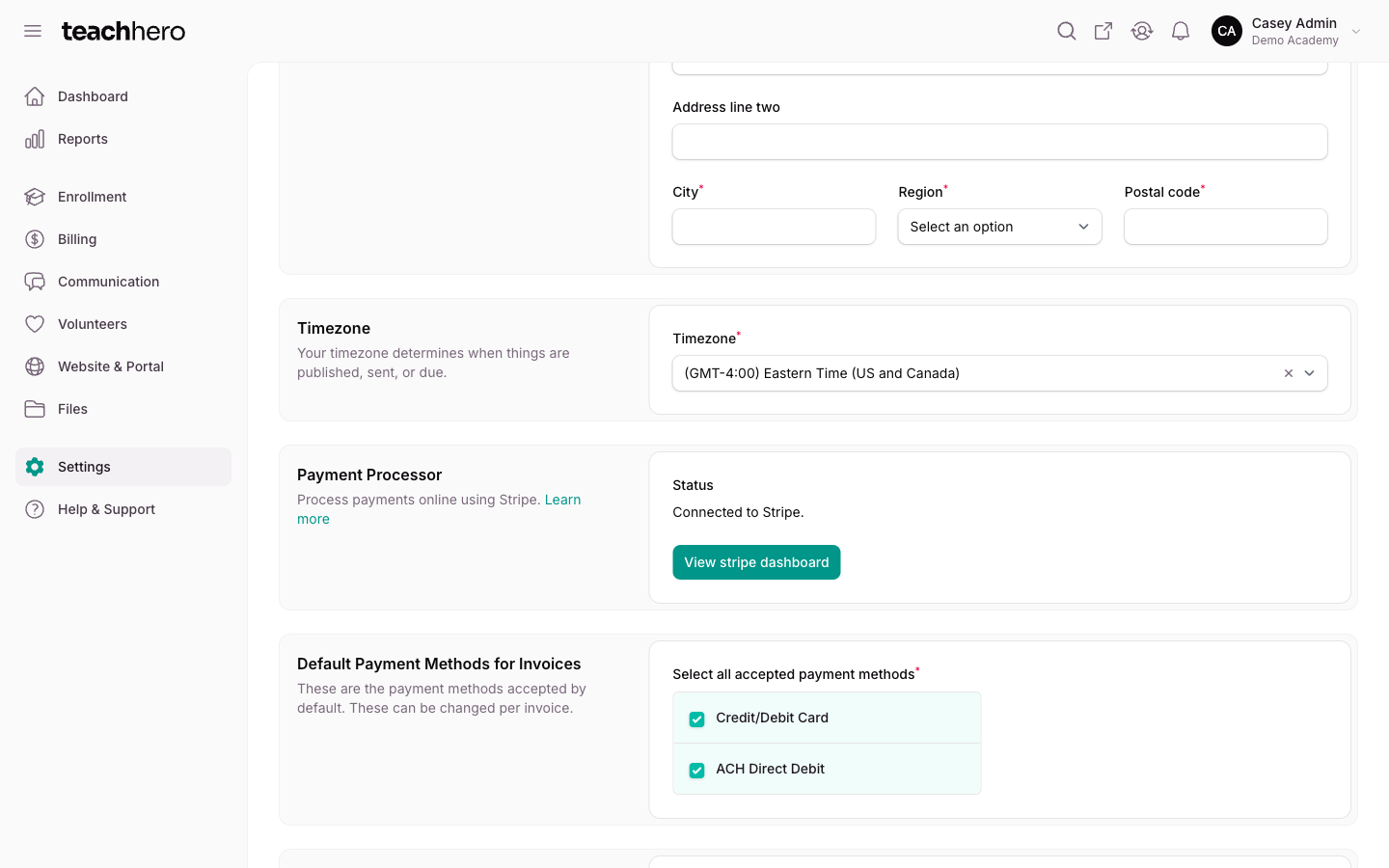
- Scroll to the Payment Processor section.
- Click Connect to Stripe, then confirm with Connect to Stripe in the dialog.
- Complete Stripe's onboarding: create a new Stripe account or sign in to an existing one, then provide your school's business details and the bank account for payouts.
- When Stripe finishes, you're returned to TeachHero automatically (if not, click the link back to TeachHero, Inc.).
You're done when the section's Status reads "Connected to Stripe." and shows a View stripe dashboard button.
Note: If you leave Stripe onboarding partway through, the button changes to Finish Stripe setup — click it to pick up where you left off.
Choose your default payment methods
Once connected, both Credit/Debit Card and ACH Direct Debit are switched on automatically under Default Payment Methods for Invoices.
- On the same School account tab, find Default Payment Methods for Invoices.
- Check or uncheck Credit/Debit Card and ACH Direct Debit — at least one must stay checked.
- Click Save settings.
These are only the defaults — you can change the accepted methods on each individual invoice and on the student application.
What families see
Parents pay invoices in the portal by card or by ACH bank transfer, and can save a payment method for auto-pay. Every online payment lands in Billing → Payments (the Payments Received list) alongside any offline payments you record.
Processing fees
Online payments are charged at Stripe's standard rates (2.9% + 30¢ for cards, 0.8% capped at $5 for ACH bank transfers) plus TeachHero's small platform fee (0.3% on cards, a flat $1 per ACH payment). All in, that's 3.2% + 30¢ for cards and 0.8% + $1, capped at $6 for ACH. Scale schools pay a lower platform fee (0.15% on cards, $0.50 per ACH payment). By default your school absorbs these fees, or, where local rules allow, you can pass them on to families at checkout. Recording checks, cash, and other offline payments is always free.
Passing processing fees to parents
Where local rules allow, you can add processing costs to the parent's total at checkout instead of absorbing them. When the option is on, a parent paying a $500 invoice by card is charged $500 plus the processing fee, and the full $500 is applied to the invoice — your school nets the amount due.
To turn it on:
- In the sidebar, click Settings. It opens on the School account tab.
- Scroll to the Processing Fees section.
- Switch on Parents pay processing fees, then click Save settings.
Parents always see the fee before they commit: the payment form shows a Processing fee line with the new total as soon as they pick a payment method, the payment authorization states the full amount, and the fee appears on their receipt.
The fee is added to every online payment — invoice payments in the portal, enrollment checkout, auto-pay charges, and payments an admin processes on a saved card or bank account.
Limitations
- On/off only. You can't set a custom percentage or flat amount. The fee always equals the processing cost of the payment (Stripe's fee plus TeachHero's platform fee, at the rates above), with nothing added on top — which keeps you within surcharge rules that prohibit charging more than cost.
- Not available in every state. Some U.S. jurisdictions prohibit passing card fees on to the payer — as of this writing: Connecticut, Maine, Massachusetts, and Puerto Rico. If your school's address is in one of them, the toggle is disabled. The check uses the state on your School account tab, so make sure your address is filled in — and if your school relocates to one of these states, fees stop being added automatically even if the toggle is still on.
- Processing fees are nonrefundable. Refunds are capped at the amount that was applied to the invoice or balance; the fee portion is never returned to the parent.
- Fees don't count toward what's owed. The fee is charged on top of — and separately from — the amount due, so it never appears as a credit, overpayment, or payment toward a balance or invoice.
- Online payments only. Cash, check, and other offline payments you record are never surcharged, and application fees are not surcharged either.
Note: Surcharge laws change and can carry disclosure requirements of their own. TeachHero handles checkout disclosure for you, but if you're unsure whether surcharging fits your school's situation, check with your own counsel before enabling it.