The teacher panel is your home in TeachHero: your classes, classwork, grading, attendance, and communication with families all live here. This article gives you the lay of the land.
Sign in
- Go to teachhero.com and click Sign in (or accept your school's invite email — see Joining a School).
- Enter your email and password.
- On My Schools, pick your school. If you teach at only one school, you land straight on your Home page.
Your Home page
Home greets you and shows what needs you today:
- Getting started: a short setup checklist for new teachers (create your teacher profile, create your first lesson or assignment, send an email, create an announcement). It disappears once you've finished.
- Today's classes: the classes you teach that meet today, in time order, with how many students are enrolled and whether attendance has been taken. Click Take attendance to open that class's attendance with today's date ready to record (the button reads Update attendance once it's taken). Click a class name to open its classwork. On days none of your classes meet, you'll see No classes today.
- N to grade: how much student work is waiting for your grade. Click it to start grading. When there's nothing waiting, it says Nothing to grade.
- Unread messages: how many messages from parents you haven't read yet. Click it to open Messages.
Find your way around
The sidebar contains:
- Home: the page described above.
- To grade: your grading queue. The badge counts student work waiting for your grade. See Grading Assignments.
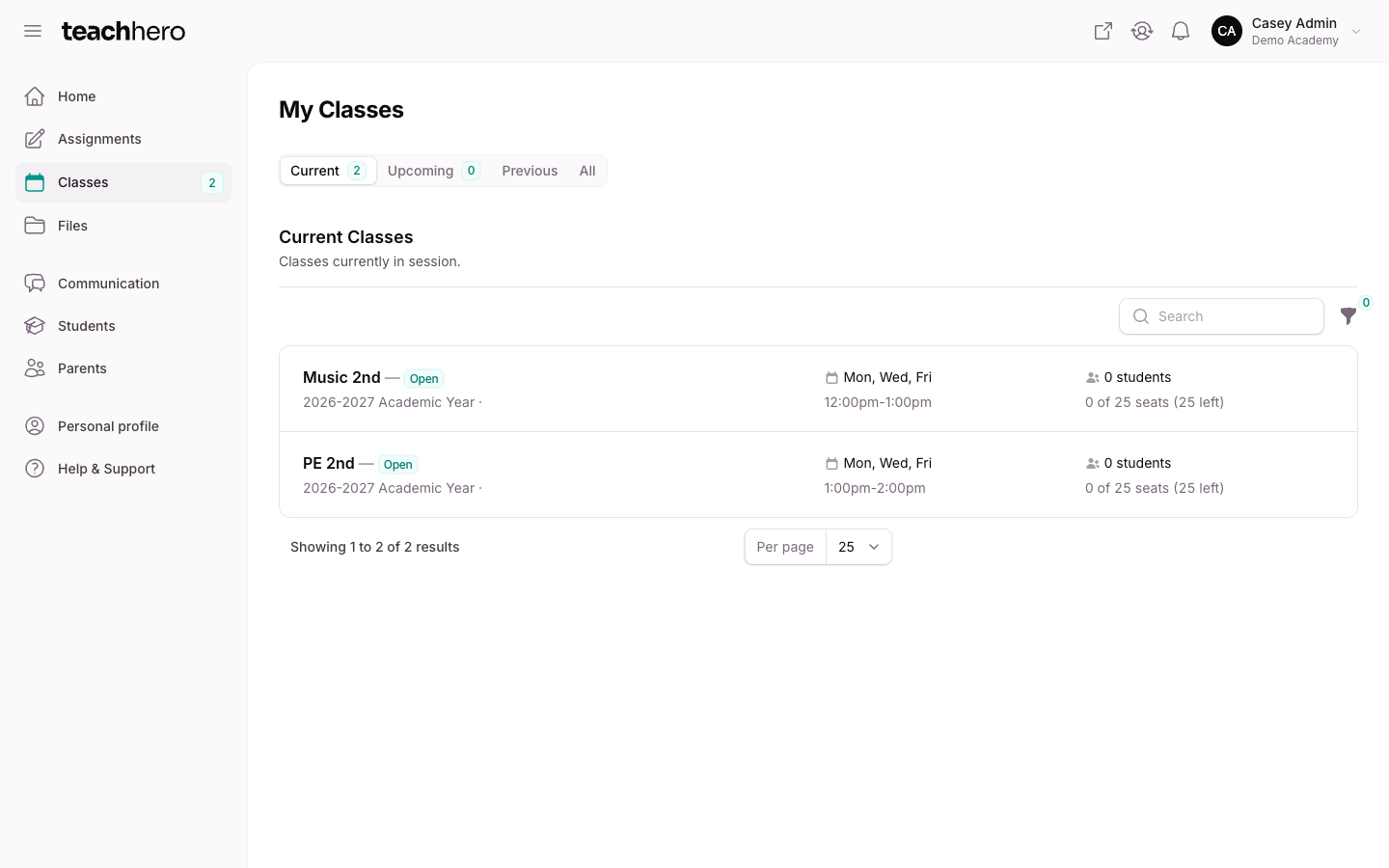
- Classes: your classes, with Current, Upcoming, Previous, and All tabs. Click a class to open it on its Classwork tab. Each class has Classwork, Attendance, Students, Announcements, and Details tabs, and its roster is listed alphabetically by last name.
- Students: the students enrolled in your classes. See Student and Parent Information.
- Parents: their parents and guardians.
- Communication (under Communicate): opens on Messages, with Emails and Announcements tabs next to it. Its badge counts your unread messages. Your email templates are under Email templates on the Emails tab.
- Help & Support (under Support): opens this help center.
Note: Teacher accounts, classes, classwork, grading, and attendance are included in every plan. See Plans & Pricing.
What you can (and can't) edit on a class
Opening a class takes you to its Classwork tab. The class's Details tab holds what's yours to change as the teacher:
- Class description and Welcome email, edited right on the Details tab
- Grading system, under Grading settings at the top of the Details tab
Everything else, including the class name, schedule, meeting days, and enrollment, is managed by your school's admins. Teachers can't create classes; your admins create them and assign you. If something looks wrong, ask an admin to update it.
The topbar
The bar across the top of every page holds your shortcuts:
- Open school portal (the arrow icon) — opens your school's public website in a new tab.
- Go to admin dashboard (the switch icon) — jumps to the admin panel. Only shown if you're also an admin.
- The bell — your in-app notifications.
- Your avatar — the user menu, described below.
The user menu
Click your avatar in the top-right corner to find:
- My profile: your profile at this school, including photo, bio, contact details, and notification preferences. See Your Profile.
- Login & security: change your email or password.
- Switch schools: back to My Schools. Only shown if you work at more than one school.
- The theme switcher: light mode, dark mode, or match your device.
- What's New: the latest TeachHero updates.
- Sign out.