Each class has an Attendance tab where you take attendance day by day and review totals per student. Taking attendance is fast: one click marks everyone present for the day, then you just flip the exceptions. Parents can see their student's attendance on the class page in the parent portal.
Note: Attendance is included on every plan, in both the teacher panel and the admin panel — school admins record and review it the same way from a class's Attendance tab. See Plans & Pricing.
Record attendance for a day
- Go to Classes and click the class.
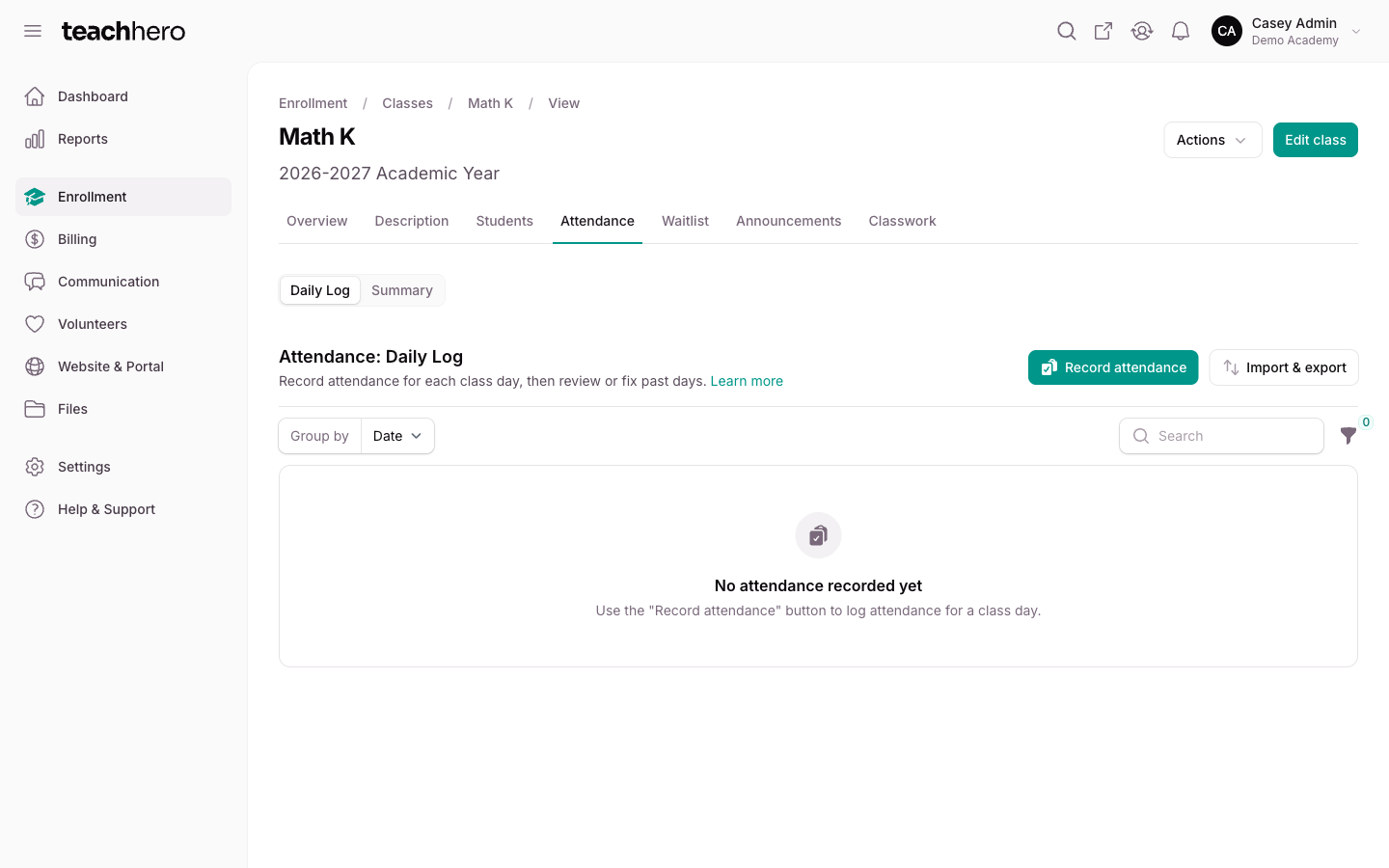
- Click the Attendance tab. You start on the Daily log.
- Click Record attendance.
- Pick the Date — it defaults to today in your school's time zone, or to the class's most recent meeting day if it doesn't meet today. Only dates within the class schedule can be chosen; days the class doesn't meet are greyed out.
- Click Record attendance.
Every enrolled student is marked Present for that date, listed alphabetically by last name. The confirmation tells you how many students were marked present. If the day was already recorded, students who already have a status keep it, and only students without one are added. Now update the exceptions:
- In the teacher panel, change the Status right on the student's row — Present, Absent, Tardy, or Excused. It saves as soon as you pick it.
- In the admin panel, open the actions menu on the student's row, choose Edit, set the Status, and click Save changes.
To add a Note (for example the reason), open the row's actions menu and choose Edit.
Tip: In the teacher panel, the Today's classes list on your Home page has a Take attendance button for each class that meets today (Update attendance once it's taken). It opens the class's Attendance tab with Record attendance already open for today.
To update several students at once, check the boxes next to them, open Bulk actions, and choose Change status — the status and optional note apply to everything selected.
Review and fix past days
The Daily log groups records by date, newest first, with students in alphabetical order within each day. Use the Status filter or the date range filter (From / Until) to find records, then edit or delete them the same way. To remove a record entirely, choose Delete from its row menu.
See attendance totals per student
Click the Summary tab. For each student you'll see:
- Total days recorded
- Present, Absent, Tardy, and Excused counts
- Attendance rate — the percentage of recorded days the student was not absent (tardy and excused days count as attended)
Import attendance
Already have attendance in a spreadsheet — because you're moving from another system partway through the year, or a teacher kept their own log? You can bring those records in instead of retyping them. Both importing and exporting live under the Import & export button on the Daily log.
- Open the class and go to the Attendance tab.
- On the Daily log, click Import & export, then Import attendance.
- In the modal, click Download example CSV file to get a spreadsheet with the correct headers and a sample row — or upload your own file.
- Match each column in your file to the fields below, then click Import.
Your spreadsheet needs one row per student per day, with these columns:
- First name and Last name — these must match a student currently enrolled in this class.
- Date — the class day, for example
2026-03-04. Most common date formats are accepted. - Status — Present, Absent, Tardy, or Excused (not case-sensitive).
- Note — optional; leave it blank if you don't need one.
TeachHero matches each row to an enrolled student by name and records the day under your name. When the import finishes, you'll get a notification with the number of rows imported. Two things to expect:
- Names that don't match an enrolled student won't import. The completion notification includes a link to download information about the failed rows, with the reason for each — usually a spelling difference or a student who isn't enrolled in this class.
- Days that already have attendance are left as they are. If a student already has a record for a date in this class, the import skips that row instead of overwriting it, so re-running an import won't create duplicates. To change a record that already exists, edit it on the Daily log.
Export attendance
- On the Daily log, click Import & export, then Export attendance to download records, optionally limited by date range or status.
- On the Summary tab, click Export summary to download the per-student totals.