Classwork is your class's curriculum: lessons and assignments that students access through the school portal. You build it on each class's Classwork tab, where you can attach links and files, reorder content, publish or schedule it, and copy it between classes.
There are two types of classwork:
- Lesson materials — course content available to all students in the class. Lessons aren't graded.
- Assignment — homework you assign to specific students (or everyone) and grade using points. See Managing Assignments.
Note: Classwork is included in every plan. See Plans & Pricing. School admins can also manage classwork from a class's Classwork tab in the admin panel.
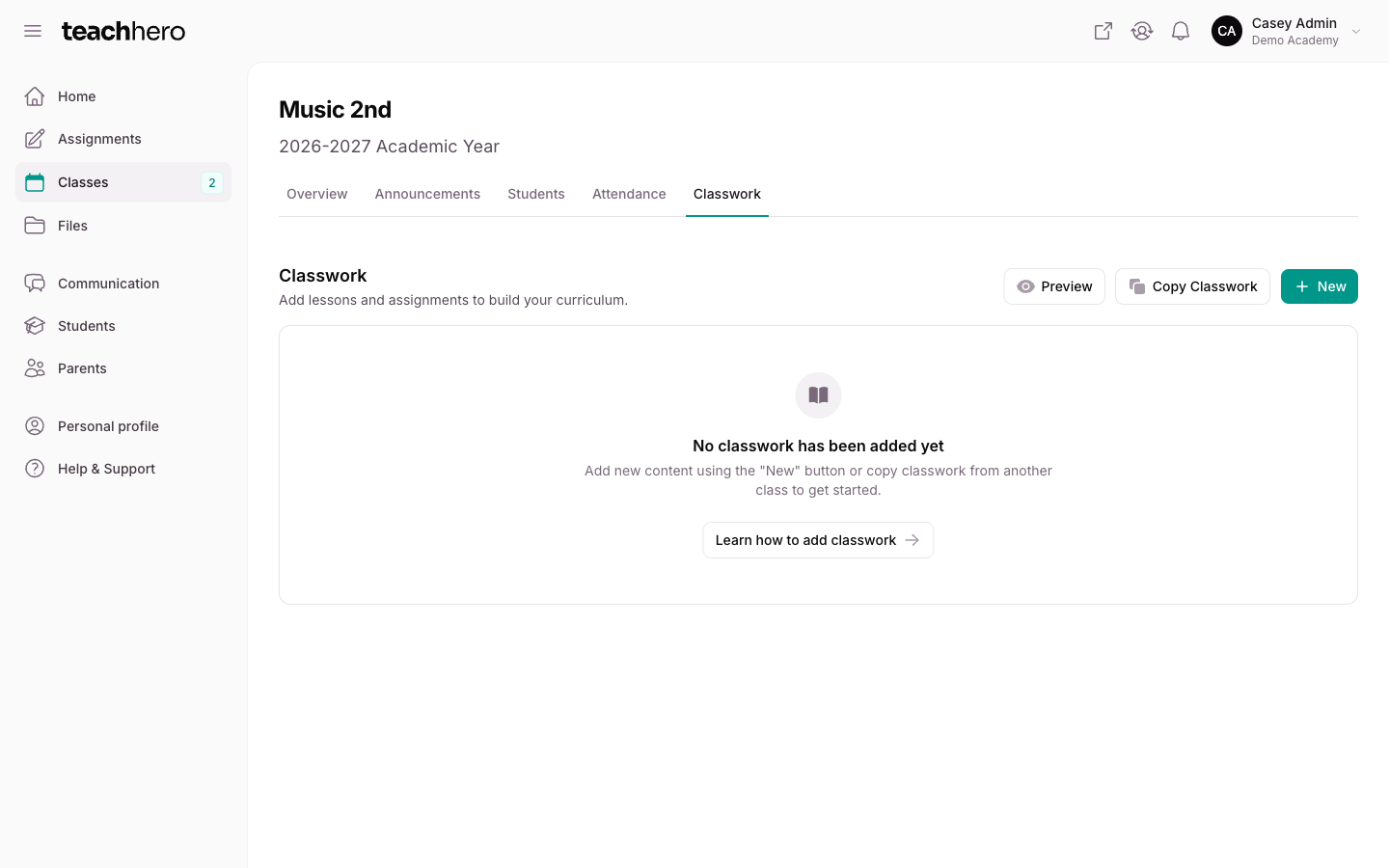
Find the Classwork tab
- Go to Classes.
- Click the class. It opens on the Classwork tab.
Create a lesson or assignment
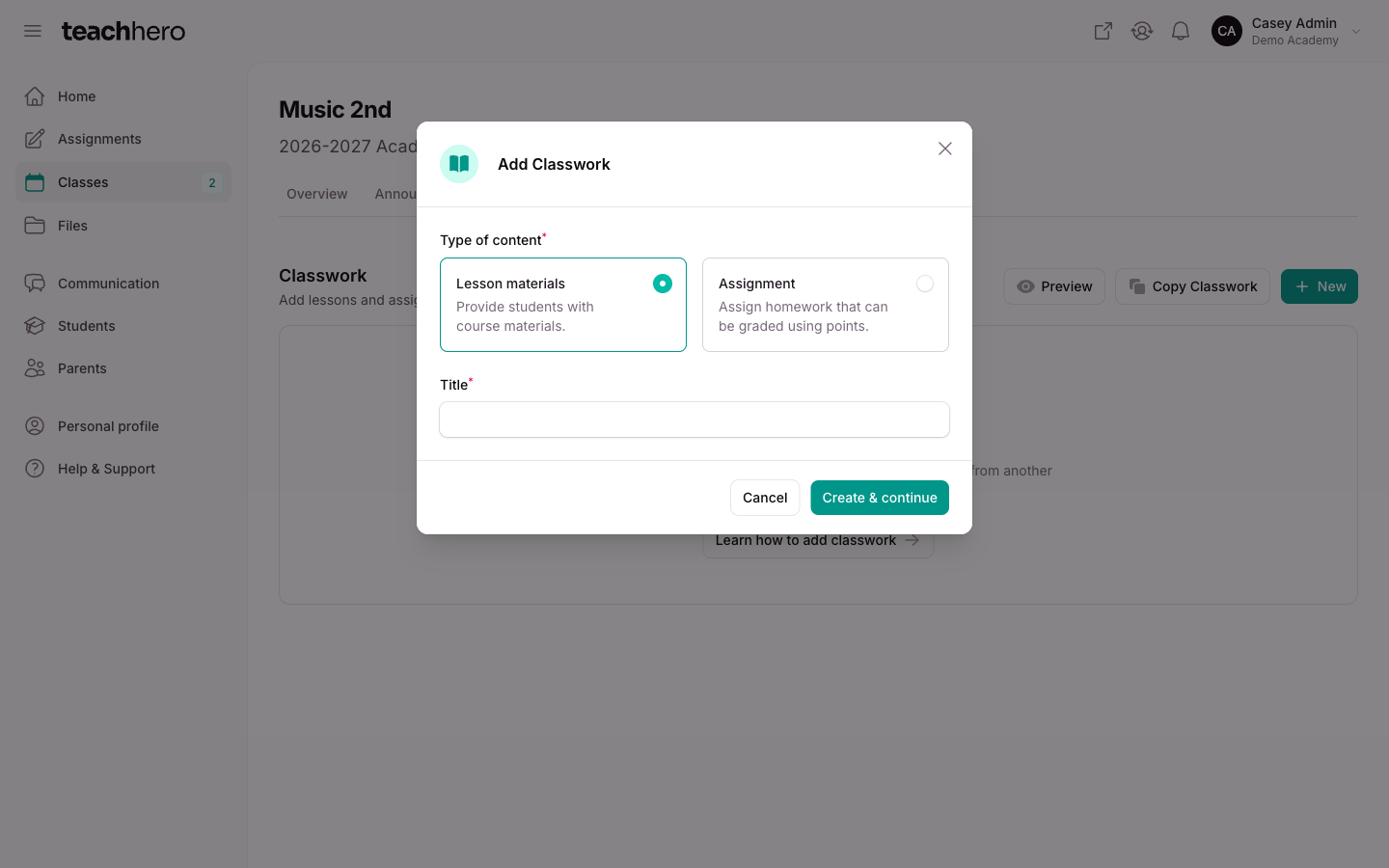
- On the Classwork tab, click New.
- Under Type of content, choose Lesson materials or Assignment.
- Enter a Title.
- For assignments only:
- If the class uses a grading system, pick a Grade category. An assignment without a category doesn't count toward the class grade.
- Enter the maximum Points (a whole number).
- Leave Automatically assign to students checked to assign it to current students and anyone who joins the class later.
- Click Create.
Note: New classwork starts as a draft — students can't see it until you publish it (see below).
The new item appears on the Classwork tab. Click it to open its page, where you can add instructions and attachments:
- Type your directions in the Instructions box (Lesson content for a lesson), then click Save changes.
- For assignments, set a deadline via the actions menu → Assignment settings → Due.
Add links and files
Open the lesson or assignment from the Classwork tab. Under Attachments:
To add a link:
- Click Add link.
- Enter the Url (include
https://) and a Label — the label is what students see. - Click Save.
To add files:
- Click Add files. The Attach files panel opens on your file library.
- Check the files you want, or click Upload files to add new ones. See Your File Library.
- Click Attach files at the bottom of the panel.
To reorder attachments, click Reorder, drag them into place, then click Finish reordering. To remove one, use the delete icon on its row and confirm with Remove.
Publish, schedule, or unpublish
Students only see published classwork. Drafts show a "draft" badge; scheduled items show a "scheduled" badge until their publish time arrives.
To publish one item now:
- Open the lesson or assignment.
- Click Publish, then click Publish again to confirm.
When you publish an assignment, the assigned students and their parents get an email about it. A published lesson shows up in students' classwork.
To schedule an item (or change when it becomes available):
- On the Classwork tab, click the calendar icon on the item's row (Change availability).
- Set Available to students from. The date and time are in your school's time zone.
- Click Save.
To publish or unpublish several at once:
- Check the boxes next to the items (or the top checkbox to select all).
- Open Bulk actions and choose Publish selected or Unpublish selected.
- Confirm.
To hide a published item again, open it and choose Unpublish from its actions menu.
Preview what students see
- Click Preview at the top of the Classwork tab to see the whole classwork list as students see it.
- Click the eye icon on an item's row (or Preview on the item's page) to preview just that lesson or assignment.
Reorder classwork
- On the Classwork tab, click Reorder.
- Drag lessons and assignments into the order students should see.
- Click Finish reordering.
Copy classwork between classes
Copy everything to or from another class:
- On the Classwork tab, click Copy classwork.
- Choose To other classes or From another class.
- Select the class or classes.
- Click Copy.
All classwork, including attachments, is copied.
To copy only some items:
- Check the boxes next to the lessons or assignments you want to copy.
- Open Bulk actions and choose Copy classwork.
- Select the classes under Copy selected classwork to these classes.
- Click Copy.
Delete classwork
Open Bulk actions after selecting items and choose Delete selected, then click Delete classwork. Or open a lesson or assignment, choose Delete from its actions menu, and confirm.
Warning: Students can no longer see deleted classwork, and student work and grades on a deleted assignment stop counting toward class grades. This can't be undone.