The School account tab under Settings holds your school's names, address, and timezone — the details that appear on invoices, receipts, and legal documents. Get these right early so everything you send to families looks correct.
Open the School account tab
In the admin panel, click Settings in the sidebar. It opens on the School account tab.
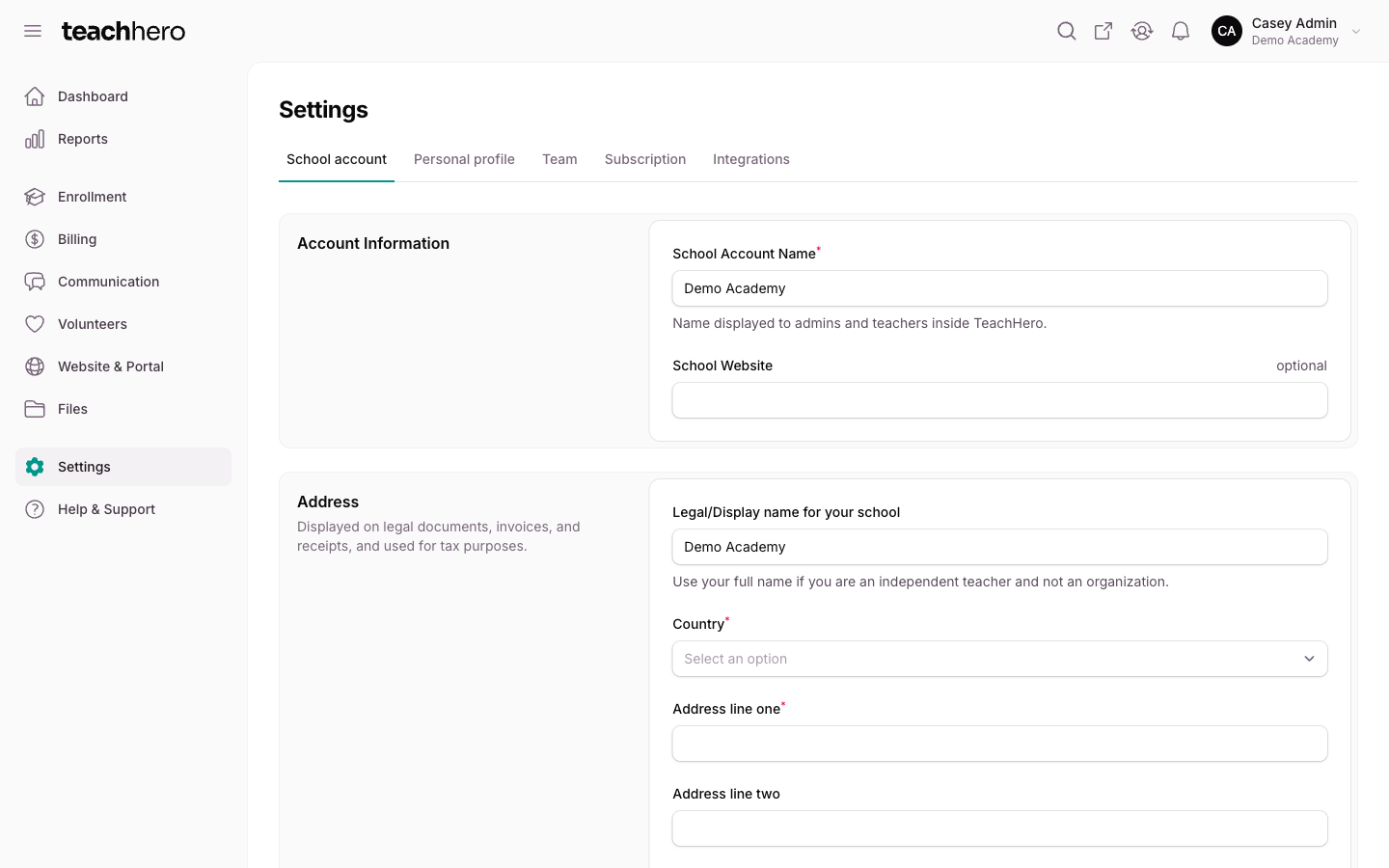
Account Information
- School Account Name — the name displayed to admins and teachers inside TeachHero. Families don't see this one.
- School Website (optional) — your school's existing website address, if you have one outside TeachHero. This is not your TeachHero website and portal address; that address is the Subdomain on the Design page (see below).
Address
- Legal/Display name for your school — the name families see on legal documents, invoices, and receipts. If you're an independent teacher rather than an organization, use your full name.
- Your school's address — required. It appears on legal documents, invoices, and receipts and is used for tax purposes. When you change it, the update also syncs to your school's Stripe customer record.
Timezone
Your timezone determines when things are published, sent, or due — scheduled emails, enrollment windows, and assignment due dates all follow it.
When you're done, click Save settings.
Looking for your logo, colors, or subdomain?
Branding lives on a different page: go to Website & Portal → Design to set your school logo, colors, fonts, and subdomain. See Design Your Website and Portal.
Other sections on this tab
- Payment Processor — connect your school to Stripe to accept online payments. See Setting up Online Payments.
- Default Payment Methods for Invoices — which payment methods invoices accept by default (available after Stripe is connected).
- Processing Fees — whether parents pay the card or bank processing fee at checkout, where your state allows it. See Setting up Online Payments.
Note: This tab is your school's account. Your own per-school profile — photo, bio, website, social links, and notification preferences — lives on the Personal profile tab next to it. See Setting Up Your Profile.