The Design page controls how your school website and family portal look — your brand colors, overall style, fonts, logo, and your site's web address, plus the navigation menus and the announcement banner. One set of choices applies across every page.
Go to Website & Portal → Design. After making changes, click Save changes at the bottom, then use View site in the header to see the result live.
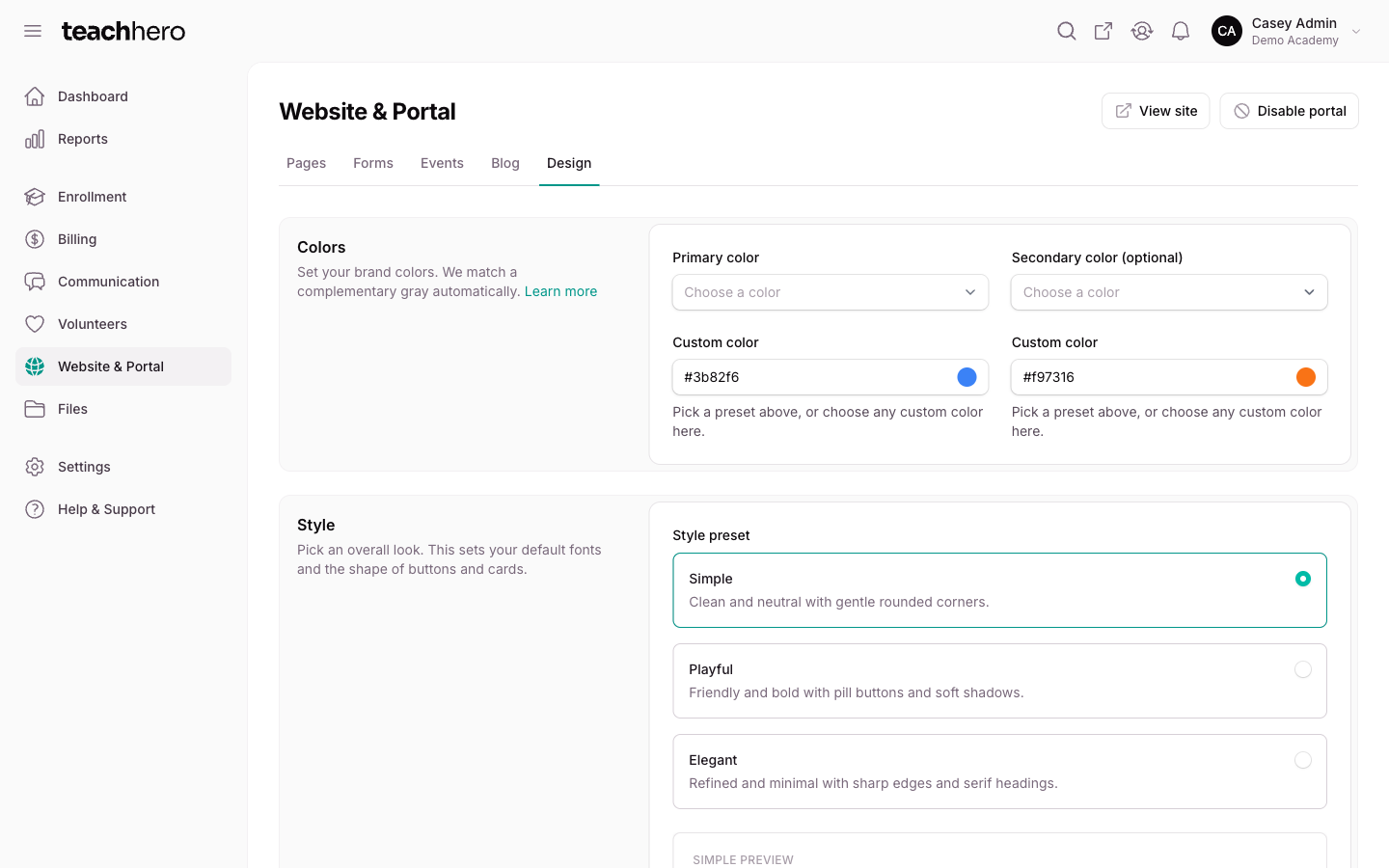
Set your brand colors
In the Colors section:
- Pick a Primary color — used for buttons, links, and highlights.
- Optionally pick a Secondary color (optional).
TeachHero automatically matches a complementary gray to your colors, so the rest of the palette always fits.
Choose a style preset
In the Style section, pick a Style preset. It sets your default fonts and the shape of buttons and cards:
- Simple — clean and neutral with gentle rounded corners.
- Playful — friendly and bold with pill buttons and soft shadows.
- Elegant — refined and minimal with sharp edges and serif headings.
A live preview below the options shows how headings, text, and buttons will look.
Note: Choosing a preset resets your Headings font and Body text font to that preset's defaults. Pick your preset first, then fine-tune the fonts.
Customize fonts
In the Fonts section:
- Choose a Headings font — used for page titles and paragraph headings.
- Choose a Body text font — used for paragraph text, buttons, and links.
Each option in the list is shown in its own typeface so you can compare at a glance.
Upload your school logo
In the Logo section, upload an image under School Logo. It appears across your portal and on documents. You can show a different logo in the website's top navigation bar if you want — see Portal Navigation.
Change your subdomain
The Subdomain section shows your portal address — the web address families visit to enroll and sign in. It always takes the form https://yourschool.teachhero.com.
- Type a new value in Subdomain.
- Click Save changes.
Each subdomain can only be used by one school, so you'll see an error if the name is already taken.
Warning: Changing your subdomain changes every link to your website and portal immediately, and the old address stops working. Any links you've already shared — in emails, enrollment invitations, form links, or event pages — will break. Update your printed materials and re-send important links after changing it.
Set up menus and social links
The Top Navigation, Menu, Sidebar, Parent portal menu, and Social links sections are also on this page. See Portal Navigation.
Show an announcement banner
The Banner section, at the bottom of the page, adds a short announcement bar to the very top of your website and portal.
- Type a Message — one line reads best (up to 120 characters).
- Pick a Color.
- Optionally add a button: type a Button label, then choose whether it Links to a page on your site or a web address.
- Optionally set a Start date and End date to limit when the banner shows. Leave them blank to show it now and until you remove it.
- Click Save changes.
To remove the banner, click Clear banner in the section header and confirm, or empty the Message and click Save changes.