The Students list shows every contact with the Student role at your school. Go to Enrollment → Students tab.
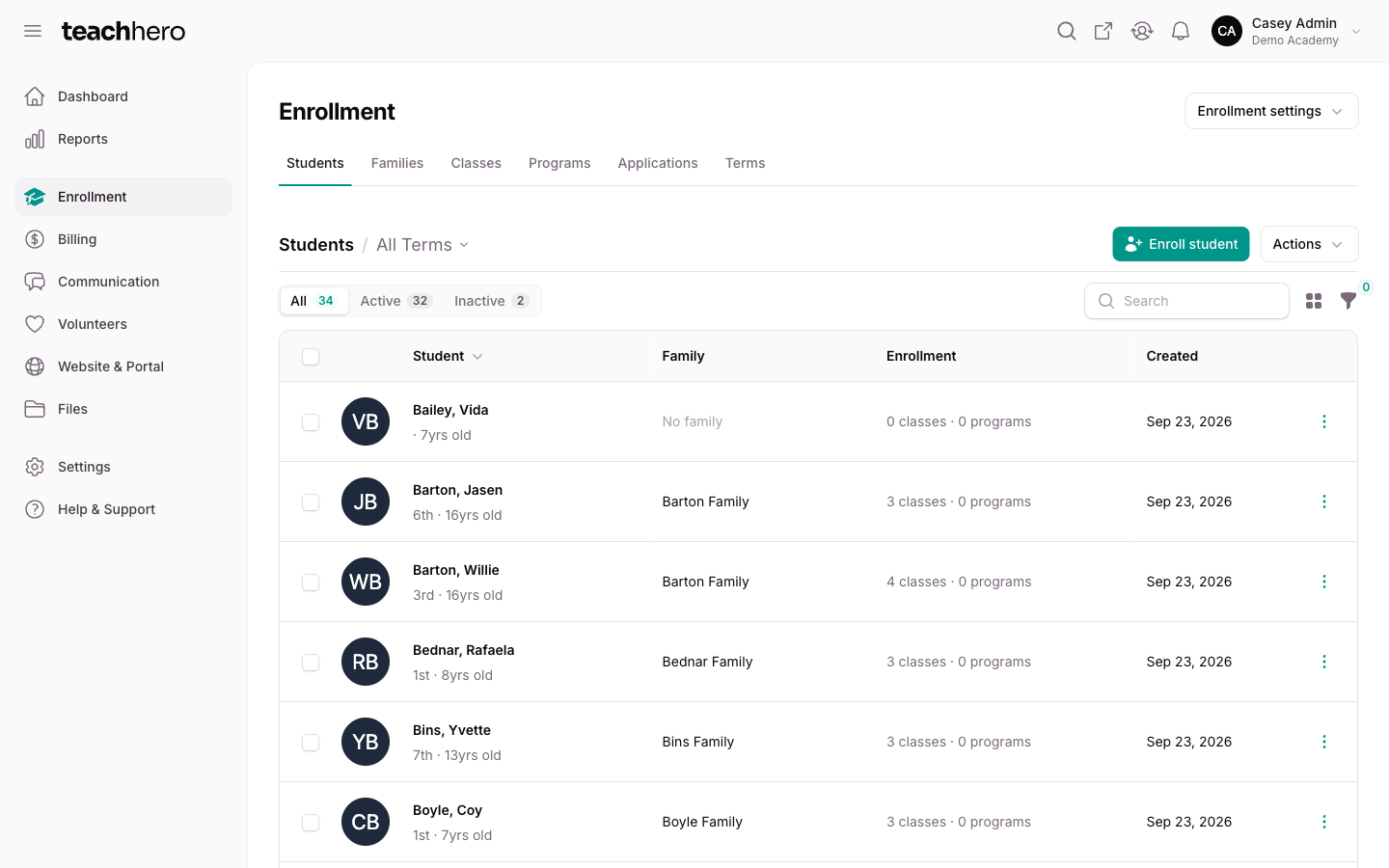
Active vs. inactive students
Use the pills above the list to filter:
- All — every student contact.
- Active — students enrolled in a current or upcoming term.
- Inactive — students not enrolled in a current or upcoming term (they never enrolled, were dropped, or their terms have ended).
The difference matters for billing: only actively enrolled students count toward your plan's student total — see Plans & Pricing.
Archived students don't appear on this list at all. To find them, go to Enrollment → Families and use the Archived filter.
Filter by term
Click the term selector next to the "Students" heading (it says All Terms by default) to focus on one term. With a term selected:
- The pills change to All / Enrolled / Dropped for that term.
- Each student's row shows their enrollment Status badge and the grade level they enrolled at.
- The Move and Drop row actions become available — see Dropping and Moving Students.
Your term selection is remembered as you move between the Students, Families, Classes, and Programs tabs.
Reading the list
Each row shows the student's photo, name, grade level and age, family, and how many classes and programs they're enrolled in. Click a student (or the view action) to open their full contact page. Use the Current level filter to narrow by grade level, and the toolbar icon next to search to switch between table and card view.
Class periods, class categories, and levels & age groups are managed right where you use them — see Managing Classes and Levels, Age Groups & Promotion.
Export students
Export the whole list (as currently filtered):
- Go to Enrollment → Students tab.
- Click Manage → Export students.
- Choose which columns to include — name, student number, grade, age, birthday, gender, family, class and program counts, and more.
- Start the export.
To export only certain students, select them with the checkboxes and use Export selected instead.
The file can take a minute to generate. You'll get an in-app notification — click the bell icon at the top right to download it.
Bulk grade-level changes
Select students and use Promote grade levels or Roll back grade levels to move them to the next or previous level. You can also promote the whole school at once, or schedule promotion to run yearly on a date you pick — see Levels, Age Groups & Promotion.