Contacts are the people connected to your school — parents, students, teachers, and admins. Contacts are created automatically when a family applies or enrolls through your school's website, or when a teacher or admin accepts an invite. You can also add contacts yourself.
Find contacts
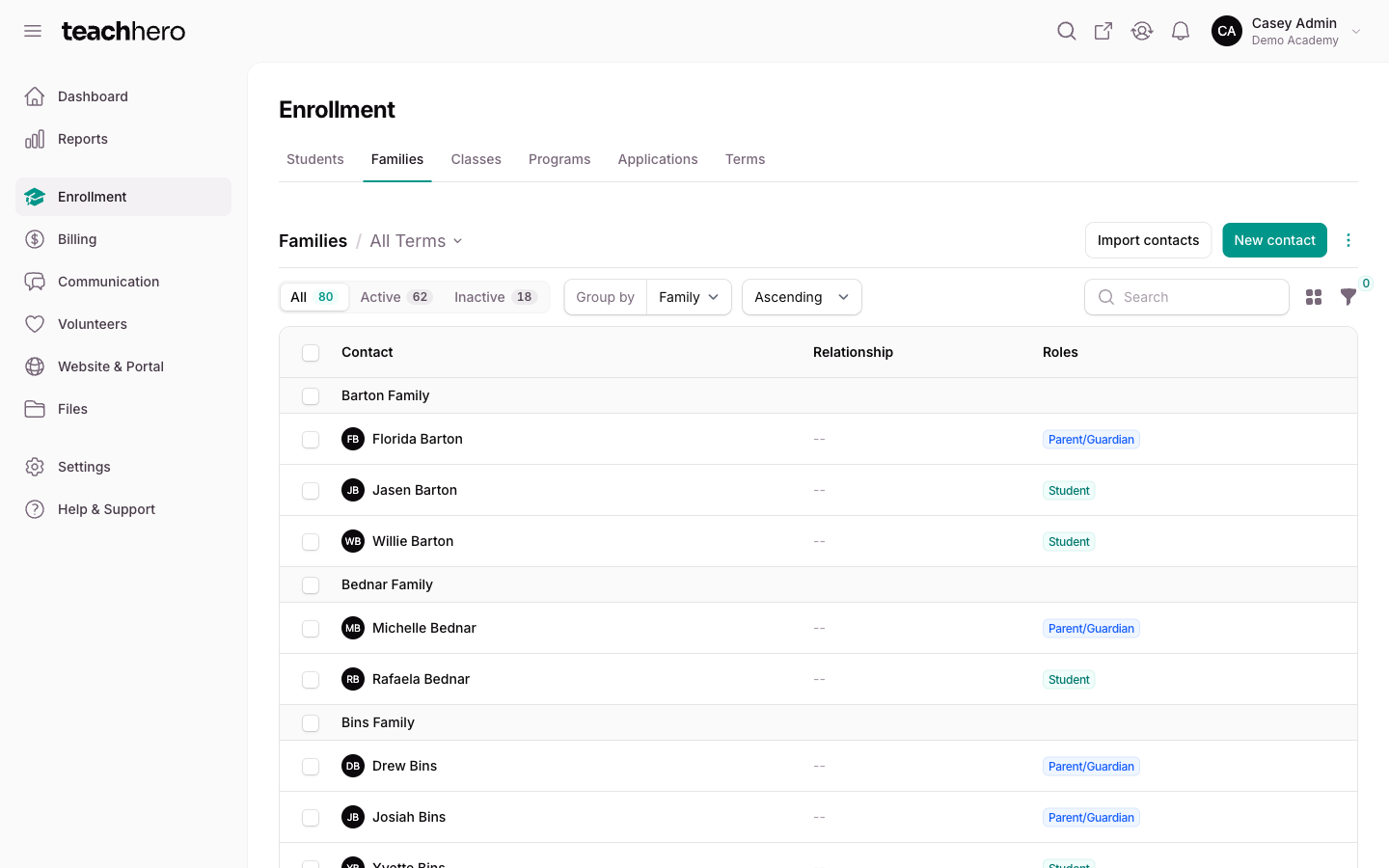
- Go to Enrollment → Families.
- Search by name using the search box.
- Use the filter icon to narrow the list by role, Has email, Email blocked, Has mobile phone, Belongs to family, or Archived.
The list is grouped by family, in alphabetical order. Contacts who aren't in a family appear last, under No family. Each row shows the contact's photo and name, their Relationship to the students, and their Roles. Click a student to open their student page, or anyone else to open their contact page.
Use the toolbar icon next to the search box to switch between the table view and a card view.
Active and inactive families
Use the pills above the list to filter by the family's enrollment:
- All — every contact.
- Active — contacts whose family has someone enrolled in a current or upcoming term.
- Inactive — everyone else, including contacts who aren't in a family.
To focus on one term, click the term selector next to the "Families" heading (it says All Terms by default). With a term selected, the list shows families with any enrollment in that term, and the pills change to:
- All — families with any enrollment in the term.
- Enrolled — families with someone enrolled in the term.
- Dropped — families whose members in the term have all dropped.
Add a contact
- Go to Enrollment → Families.
- Click New contact.
- Enter a First name and Last name.
- Optionally enter a primary email address (recommended).
- Click Create.
If a contact with the same name already exists, TeachHero warns you: "A contact already exists with this name." and stops. Click View contact in the warning to check the existing contact, or check Allow duplicate contacts and create it anyway.
Note: Adding many contacts at once? Use Importing Contacts instead. Already ended up with duplicates? See Merging Duplicate Contacts.
The contact page
Click any contact to open their page. The header shows their photo, name, and role badges, and the Profile panel lists their details — including Student ID and current grade level for students.
The tabs on the contact page collect everything related to that person:
- Contact — their family members and what the family owes, a student's bills and what they still owe, Payment methods, and Credits. See What a Student Owes.
- Enrollment — the classes and programs a student is enrolled in.
- Notes — private notes for your staff.
- Files — documents attached to the contact.
- Forms — every form response linked to them (see Form Responses).
- Emails — emails they've received from your school.
- Messages — the secure-message conversations they're part of (see Secure Messages).
When a contact's email is blocked
If mail to a contact's address keeps bouncing, or someone at that address marked one of your emails as spam, the address is blocked and TeachHero stops sending to it — broadcasts and automatic emails alike. A red Email delivery badge appears under the email address on their Profile panel, with a matching badge next to them in the contacts list.
Ask the family for a current address and update it on the contact; the badge clears as soon as you save. See Blocked Email Addresses.
Edit a contact
- Open the contact.
- Click Edit contact.
- Make your changes across the Details, Roles, and Contact tabs.
- Click Save changes.
The Details tab covers their photo, name, birthday, gender, and family. The Contact tab covers their email, mobile phone, and address — turn on Use family address to copy the family's address instead of typing it again.
Assign roles
On the Roles tab of the edit form, check the roles that apply under Assigned roles:
- Student — enrolled in classes and programs at the school.
- Parent/Guardian — manages family billing and acts as a guardian for students.
- Teacher — teaches classes and manages classwork, attendance, and grades.
- Admin — full access to manage people, settings, and billing.
Most roles are assigned automatically: approving a student application assigns the Student and Parent/Guardian roles, and accepting a staff invite assigns Teacher or Admin.
When you check Student, you must also pick a Current grade level, and a Student Portal Credentials section appears with the ID and PIN the student uses to log into the student portal.
When you check Teacher or Admin, you can check Send invite to this contact to email them an invitation to join your school — the role alone doesn't let them sign in. See Teacher & Admin Access.
Manage payment methods
Parents' saved payment methods live on the Contact tab under Payment methods. This requires your school to be connected to Stripe.
- Open the contact.
- On the Contact tab, find Payment methods.
- Click Add payment method.
- Enter the card or bank account details on the Add New Payment Method page.
The contact's default method is marked with a Default badge. Some bank accounts need an extra verification step before they can be charged — those show a pending status with a Verify action that opens Stripe's secure verification page.
Warning: Deleting a payment method also turns off auto-pay on any open bills that were using it.
Archive or delete a contact
To archive, open the contact, click the gray dropdown next to Edit contact, and choose Archive. Archived contacts are hidden from view and no longer count toward your plan's limits. Restore them any time with Unarchive (filter the list by Archived to find them).
Archiving is blocked while the contact still has loose ends. TeachHero tells you which one applies:
- A student enrolled in a current or upcoming term — drop their enrollments first.
- A student with an unpaid balance — settle it first.
- Open invoices — resolve them first.
- The only parent of a family with active students — add or unarchive another parent first.
Deleting is only possible for contacts with no history. If the contact has records like invoices, payments, or enrollments, TeachHero blocks the delete and suggests archiving instead.