The Scheduled tab under Billing → Payments shows every invoice with money coming due in a date range — upcoming payment dates and pay-in-full due dates — so you can see what's about to be collected and fix problems before charge day.
View scheduled payments
- Go to Billing → Payments → Scheduled.
- Use the Due between date range at the top to pick a window. It defaults to the current month (or the selected term's first or last month if the term hasn't started or has ended).
- Use the term selector in the table heading to focus on one term.
Only published invoices appear — held, closed, and uncollectable invoices are excluded. For invoices on a payment plan, the row shows the latest payment date in your range and the remaining amount due by the end of the range; pay-in-full invoices show their due date and balance.
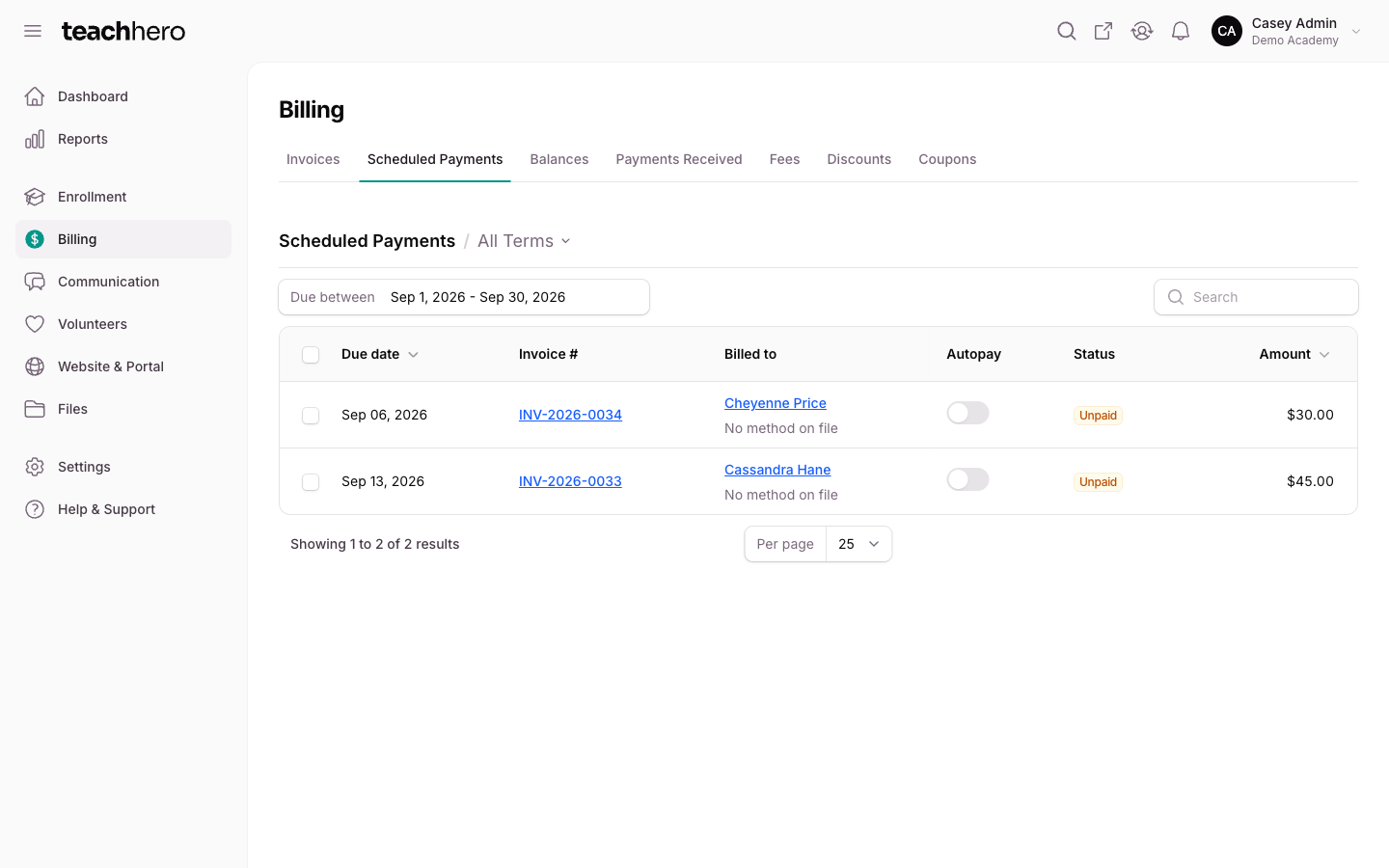
What each row shows
- Due date — when the money is due.
- Invoice # — links to the invoice; the line below shows the student and term.
- Billed to — links to the payer. The line below shows the card or bank account that will be charged (for example "VISA ••••4242"). Watch for two problem states:
- No method on file — the payer has no saved payment method, so autopay has nothing to charge.
- Update payment method — the method on file is no longer usable (for example, expired).
- Autopay — an On or Off badge. Click it to open the invoice, where you change it.
- Status — Paid or Unpaid for the amount in the range.
- Amount — what's due in the range.
Turn autopay on or off
Autopay is switched on the invoice, not on this page. Click the Autopay badge on a row to open the invoice, then use the autopay alert above the totals:
- Click Turn on autopay, choose the Payment method to charge, and confirm. The button is grayed out until the payer has a saved card or bank account the invoice accepts.
- Click Turn off autopay and confirm to stop automatic charges. The invoice stays open and is still owed; TeachHero just stops charging it automatically, and the family can still pay in the parent portal.
Stay ahead of charge day
Admins who enable the Upcoming Autopay notification (under Settings → Personal profile → Notifications) get an email digest of autopay charges due within the next 48 hours — a good moment to fix "No method on file" rows before charges fail. If a payment does fail, see Why didn't a parent get charged?.