Coupon codes let you run promotions and give special discounts to the families who have the code. Unlike automatic discounts, which apply to everyone who qualifies, a coupon only applies when a parent enters the code at checkout.
Create a coupon
- Go to Billing → Coupons.
- Click New coupon.
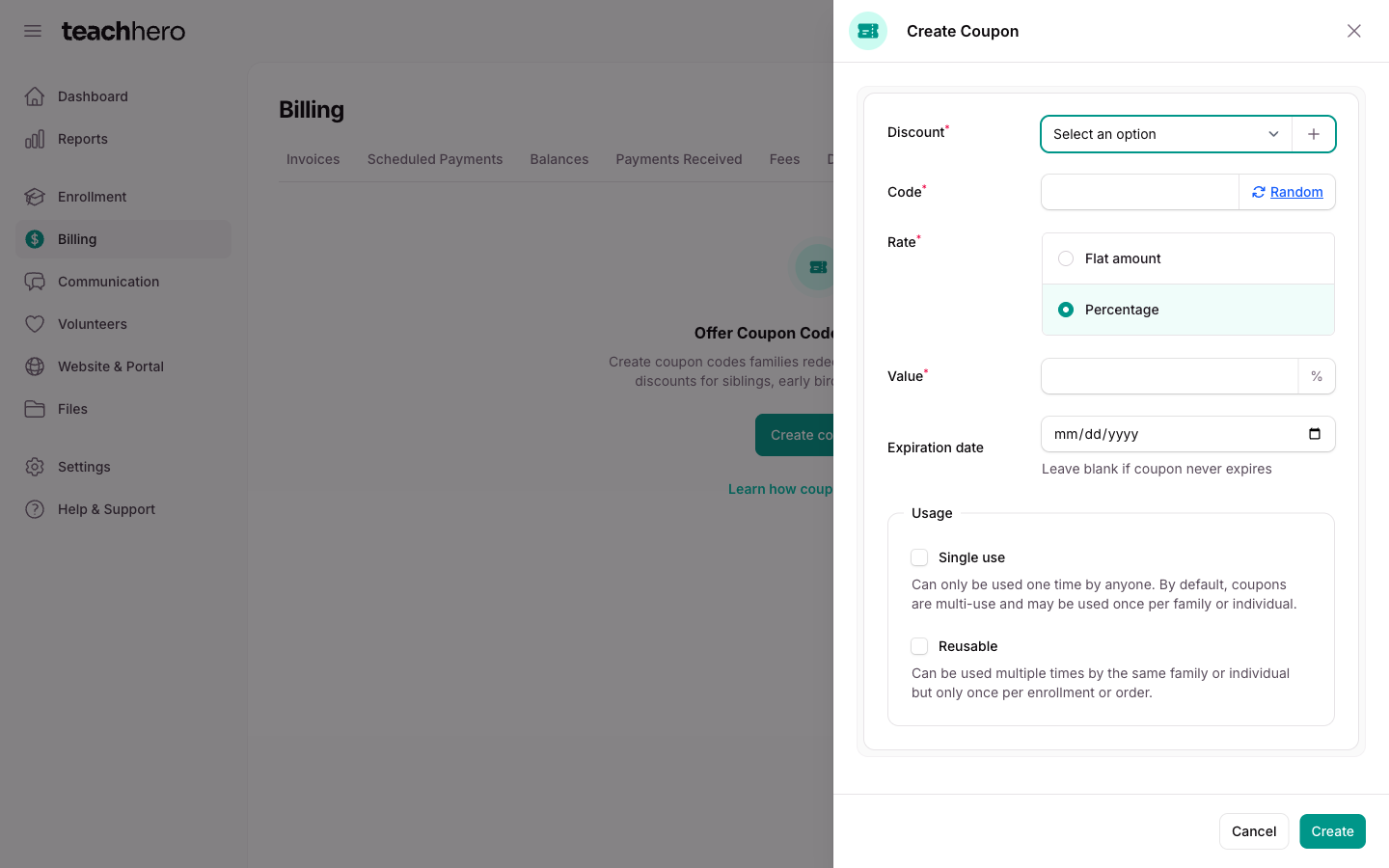
- Choose the Discount type the coupon belongs to — this is how it appears in reporting. Click the + button to create a new discount type.
- Enter a Code, or click Random to generate one (recommended). Codes are automatically uppercased.
- Choose the rate — Flat amount or Percentage — and enter the value.
- Optionally set an Expiration date. The coupon works through the whole of that day and expires afterward. Leave it blank if the coupon never expires.
- Under Usage, choose how often it can be redeemed:
- Default (both boxes unchecked): multi-use — each family or individual can use the coupon once.
- Single use — can only be used one time by anyone; the first person to redeem it uses it up.
- Reusable — can be used multiple times by the same family or individual, but only once per enrollment or order.
- Click Create.
The Coupons list shows each code, its value, its discount type, a Used count, and a Status badge. Click a coupon to edit it, or open the actions menu on its row to disable, archive, or delete it.
How parents use a coupon
During checkout, parents enter the code in the Enter your discount code field and click Apply Discount. The discount is applied to their enrollment fees and appears under Applied Coupons in the order summary, where they can also remove it before paying.
If the code is disabled, expired, archived, or simply wrong, they're told it didn't match a current discount and nothing is applied.
Coupon statuses
The Status badge on each row tells you whether a code still works:
- Active — families can redeem it at checkout.
- Disabled — you switched it off.
- Expired — its expiration date has passed.
- Archived — you put it away, and it's hidden from the list.
Only active coupons can be redeemed.
Turn a coupon off and on
Disabling stops a code being redeemed without losing it — useful when a promotion ends early, or a code gets shared more widely than you intended.
- Go to Billing → Coupons.
- Open the actions menu on the coupon's row and choose Disable.
- Confirm with Disable coupon.
Discounts families have already redeemed stay on their invoices. To switch the code back on, choose Enable from the same menu.
Archive a coupon
Archiving moves a coupon out of the list when you're done with it. A coupon has to be disabled or past its expiration date before you can archive it, so archiving is always the second step.
- Open the actions menu on the coupon's row and choose Archive.
- Confirm with Archive coupon.
Archived coupons are hidden until you set the Archived filter to Include archived (or Only archived to see just those). To bring one back, find it with that filter and choose Restore. It returns to the list still disabled or expired, so enable it or give it a later expiration date before families can use it again.
Delete a coupon
Delete only appears on coupons nobody has redeemed. Once a code is on a family's invoice, deleting it would change their billing history, so archive it instead.
- Open the actions menu on the coupon's row and choose Delete.
- Confirm with Delete coupon. This can't be undone.